Install Unofficial Apps on a Samsung TV with Apps2Samsung (VLC, Jellyfin & more)
The Samsung TV app store has no VLC and no Jellyfin. But with Samsung's own Developer Mode and the open-source tool Apps2Samsung, you can sideload Tizen community apps (.wgt) in just a few clicks. Here's the full walkthrough — from enabling Developer Mode to actually installing and running VLC — based on the latest interface.
Apps like Jellyfin and VLC aren't available in the Samsung TV app store, so you can't install them the normal way. But many open-source communities offer great free apps, and you can install them easily.
There's only one hurdle: putting your Samsung TV into Developer Mode. This isn't a hack — it's a feature Samsung officially built into Tizen TVs, so it's not hard. Here's how.
STEP 1 Enable Developer Mode on the TV
First, open the Apps screen on your TV and go to Settings.
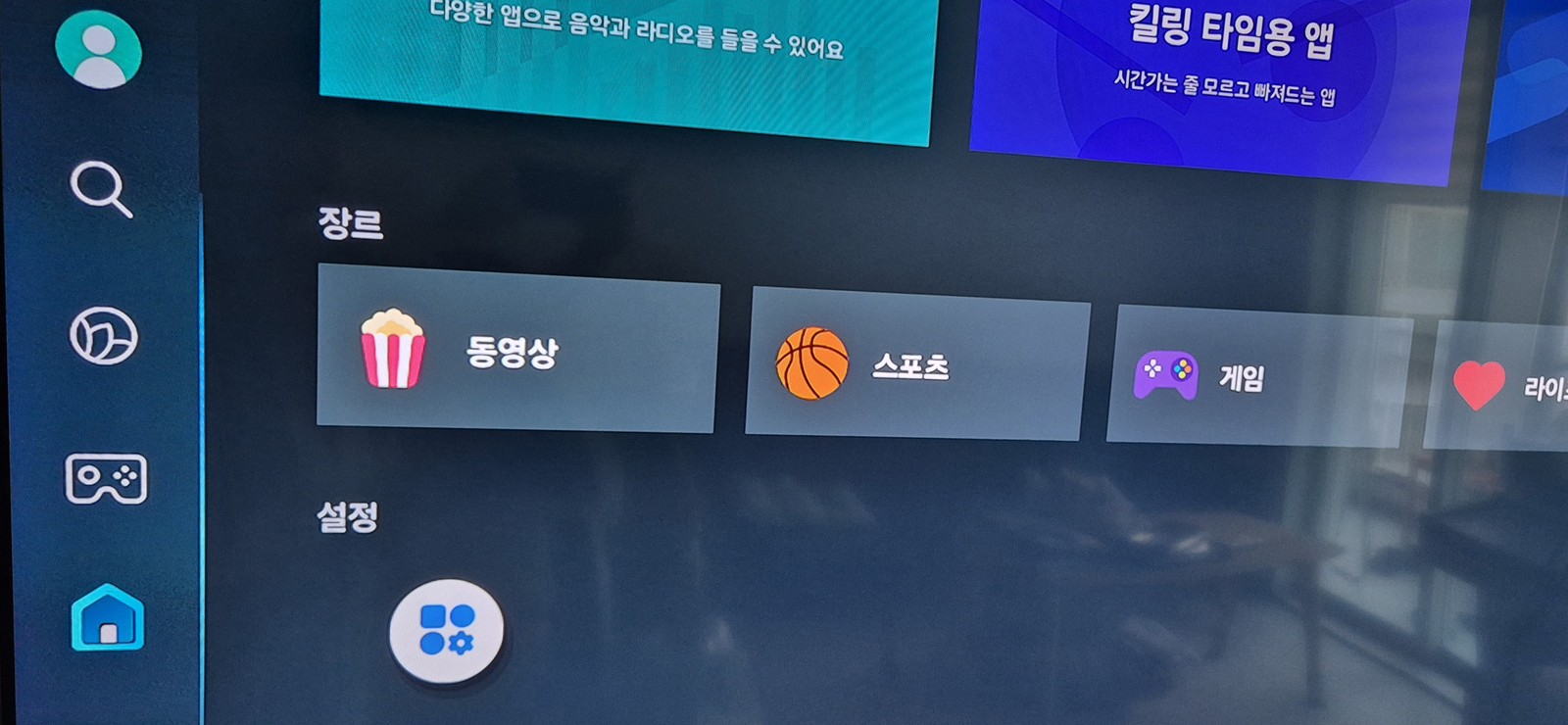
▲ The Samsung TV Apps screen. Move to the gear-shaped Settings icon at the bottom.
On the Settings screen, press 1 2 3 4 5 in order on the remote's number keys, then press OK. The Developer Mode dialog appears.
Don't see number buttons on your newer remote?
Recent Samsung Smart Remotes have no dedicated 0–9 buttons, but they do have a "123" button (yellow circle in the photo below). Press that 123 button to bring up an on-screen number pad, then use it to enter 1 2 3 4 5.
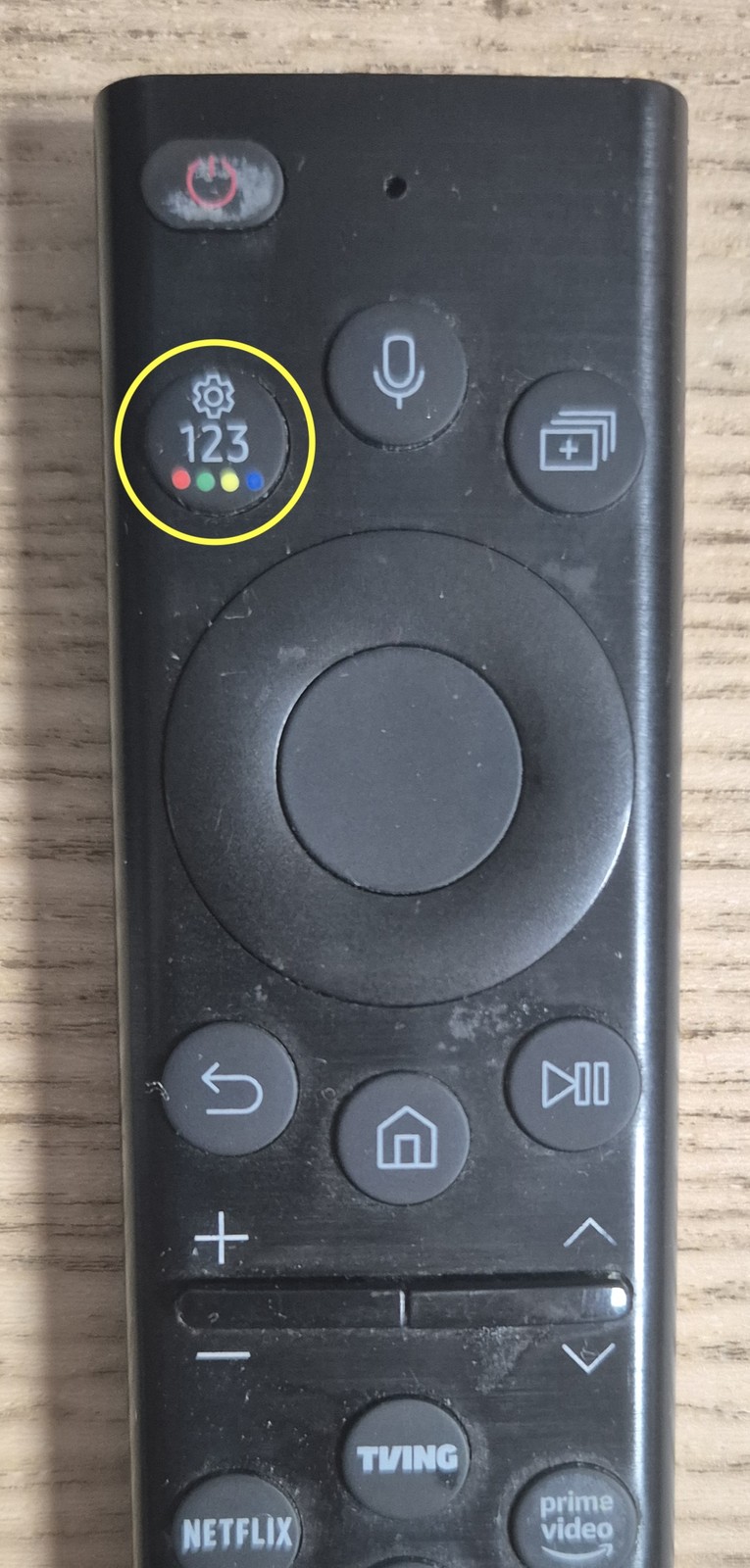
▲ The "123" button on the Samsung Smart Remote (yellow circle). Press it to pop up an on-screen number pad and enter 12345.
In the Developer Mode dialog, set two things:
- Developer mode = On
- Host PC IP — the IP address of the Windows PC that will upload and control the apps.
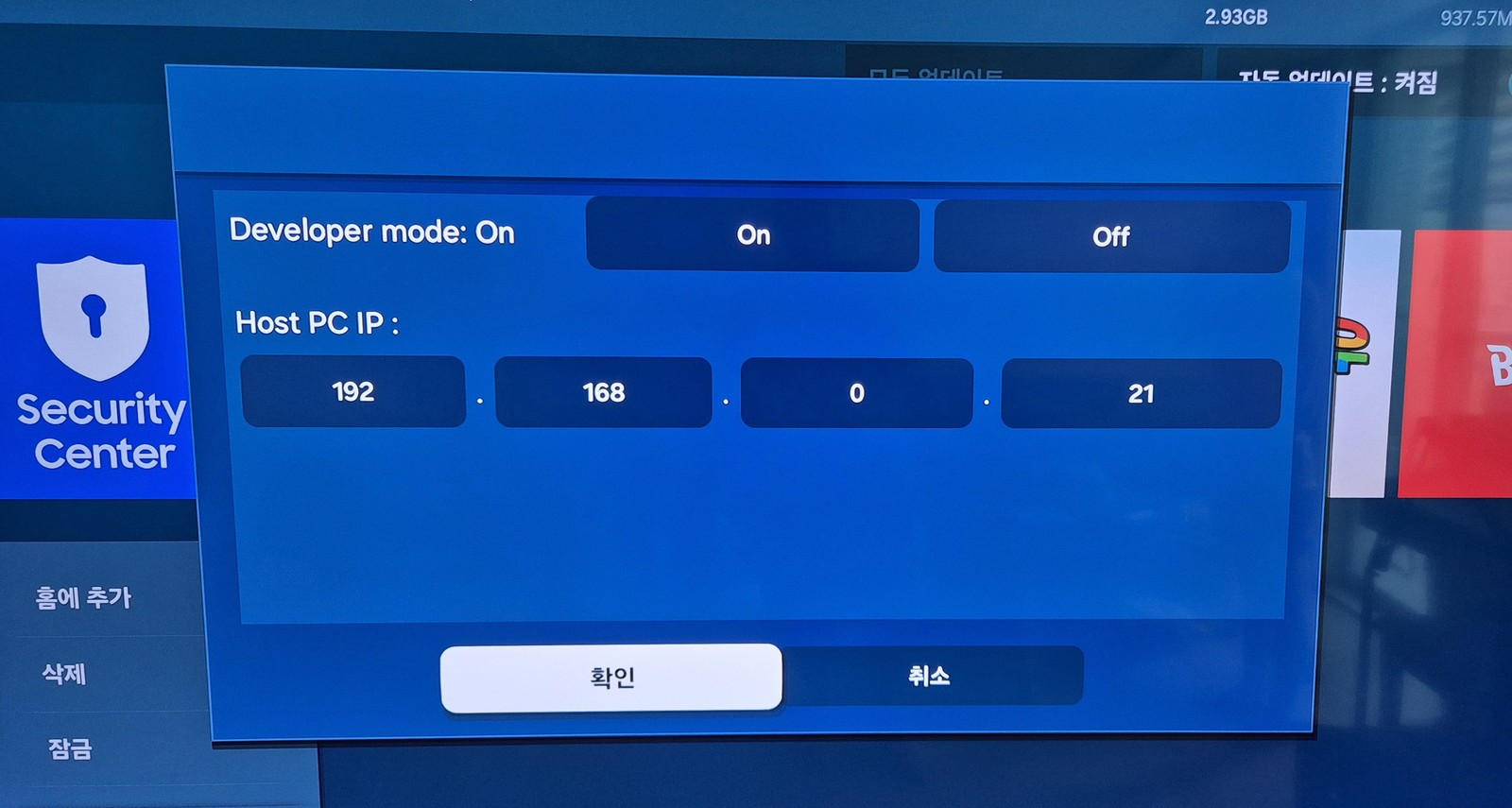
▲ Set Developer mode to On, enter your Windows PC's IP (example: 192.168.0.21) in Host PC IP, and confirm.
My Windows PC is 192.168.0.21, so I entered that. Use your own PC's IP. For security, apps can only be uploaded from the PC IP registered here.
How to find your Windows PC IP: open Command Prompt (cmd), type ipconfig, and look at the "IPv4 Address," or check Settings → Network & Internet. It's usually in the form 192.168.x.x.
Once set, turn the TV off and fully unplug the power cable to reboot it. Developer Mode only takes effect after a restart.
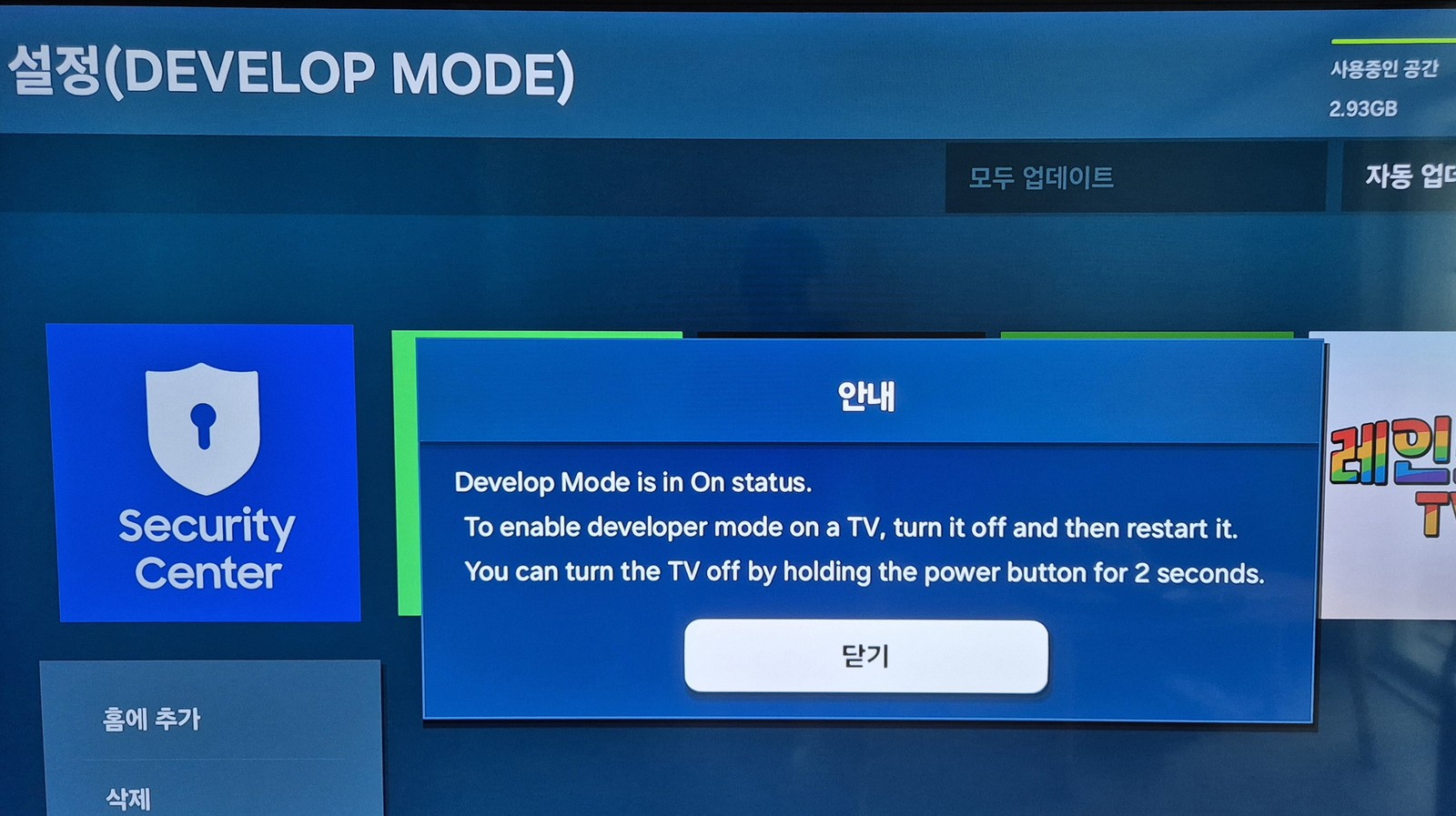
▲ "Develop Mode is in On status. …turn it off and then restart it." The restart notice popup.
The on-screen message "You can turn the TV off by holding the power button for 2 seconds" means exactly that — holding the power button for 2 seconds turns the TV off. You can power it off that way, or, as I did, simply unplug the power cord and plug it back in.
STEP 2 Check the TV's IP address
You need to know the IP of the target — that is, which IP the TV is using. Check it under Settings → Network.
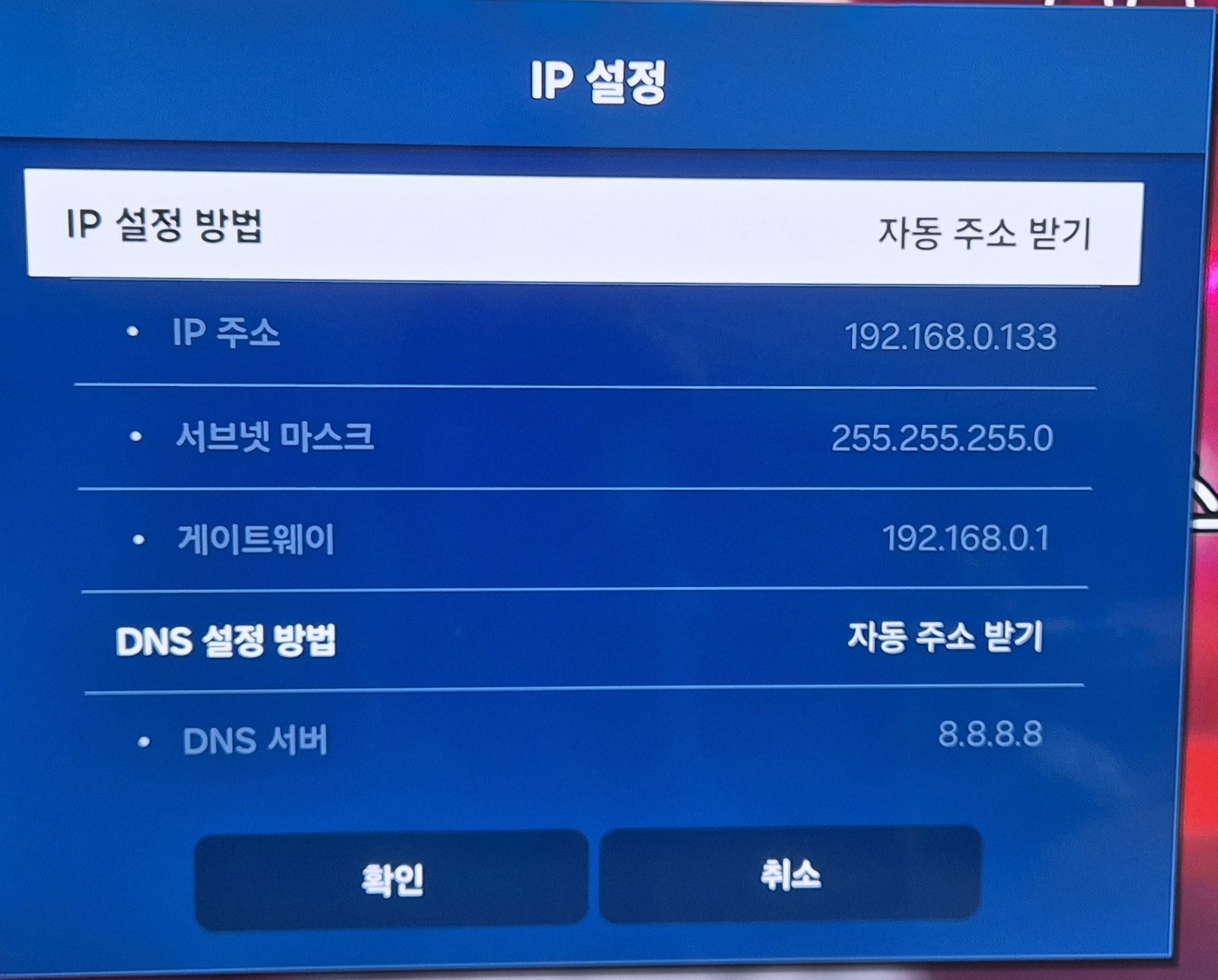
▲ The TV's IP settings screen. In this example the TV IP is 192.168.0.133. You'll use this address later.
Alternatively, log into your router's admin page and check which IP the Samsung TV was assigned.
The TV and PC must be on the same network (same router). Don't mix up the Host PC IP (STEP 1) and the TV IP (STEP 2). Host PC IP = your computer; TV IP = the target TV.
STEP 3 Download and install Apps2Samsung
On your Windows PC, download the latest version of Apps2Samsung.
Download: github.com/Apps2Samsung/Apps2Samsung/releases — as of July 2026, v2.6.0 is the latest (previous stable: v2.5.7).
Run the downloaded .msi to install. Because it's not code-signed, Windows SmartScreen shows a warning, but it's not a harmful app — dismiss the warning and continue.
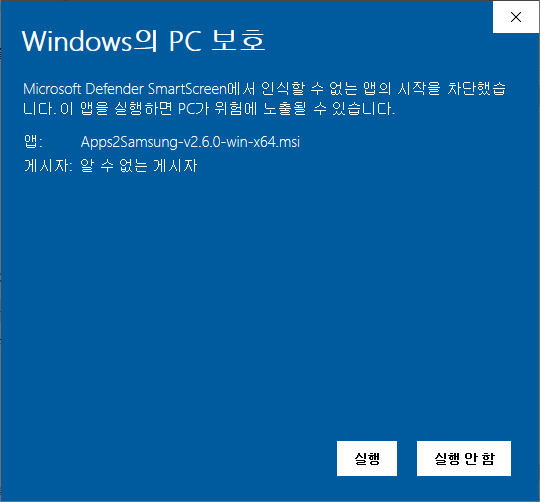
▲ The "Windows protected your PC" SmartScreen warning. Click [More info] → [Run anyway] to proceed.
The SmartScreen warning simply means the publisher is unknown, not that it's malware. Still, for peace of mind, only download from the official GitHub release above. Apps2Samsung is MIT-licensed open source, so its code is public.
STEP 4 Connect to the TV with Apps2Samsung
After installing, launch Apps2Samsung and it finds the TV automatically. If it doesn't, enter the TV IP manually (the address from STEP 2).
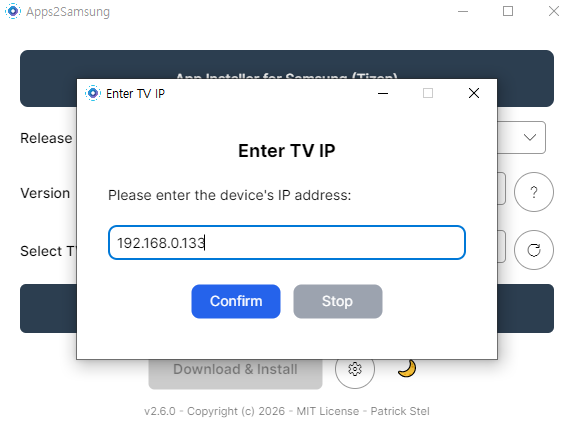
▲ In the 'Enter TV IP' window, type the TV's IP (192.168.0.133) and click Confirm.
If it can't find the TV, you'll get an error like this:

▲ "Invalid device IP or device not found." / "No devices found" error.
The usual causes are:
- Developer Mode wasn't enabled properly (including forgetting to reboot).
- The Host IP was set wrong in Developer Mode (wrong Windows PC IP).
- The TV and PC are not on the same network.
When Developer Mode is set up correctly, Apps2Samsung finds the TV right away on launch.

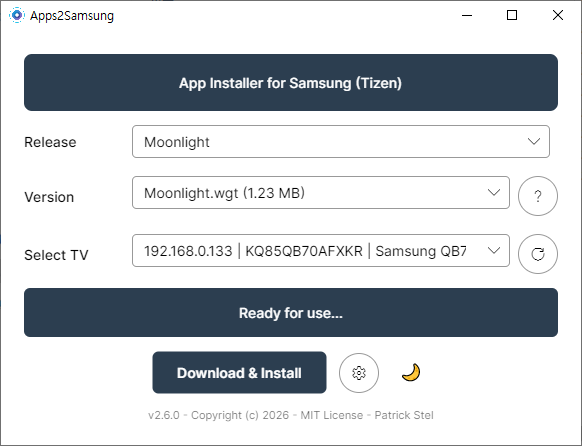
▲ When the TV IP and model appear under 'Select TV' and it says "Ready for use…", you're good to go.
STEP 5 Install an app — VLC as the example
Now you can install apps freely. The most useful community app is probably VLC, so as an example I installed VLC-TV. Pick the app under Release and press Download & Install.
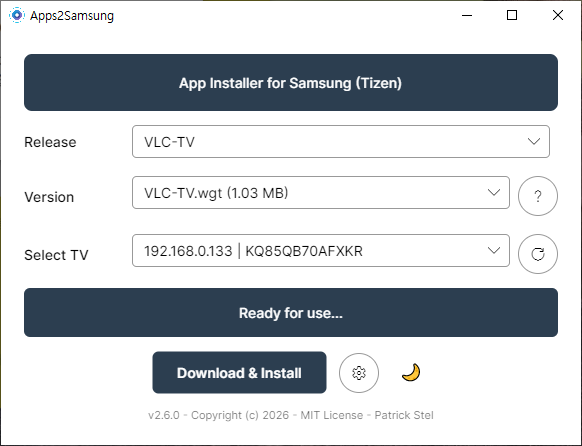
▲ Choose VLC-TV under Release and VLC-TV.wgt under Version, and the 'Download & Install' button activates.
When installation finishes, the developer asks you to "Buy me a beer" as a donation. Feel free to support if you like — or not.

▲ "VLC-TV has been successfully installed!" The QR code is a donation link for the developer.
If installation fails
Sometimes you'll hit an error saying the connection dropped during installation:
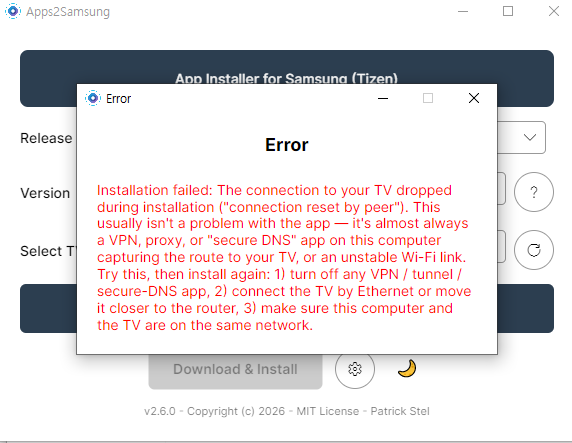
▲ "Installation failed: The connection to your TV dropped…" This is more often a network issue than an app problem.
As the message itself notes, this is usually caused by a VPN, proxy, or "secure DNS" app on the PC hijacking the route to the TV, or an unstable Wi-Fi link. Fixes: (1) turn off any VPN/tunnel/secure-DNS app, (2) connect the TV by Ethernet or move it closer to the router, and (3) make sure the PC and TV are on the same network.
When I hit this error, I worked around it by downloading the wgt file myself and uploading it directly. In Apps2Samsung, choose Custom WGT File and point it at the downloaded .wgt file.
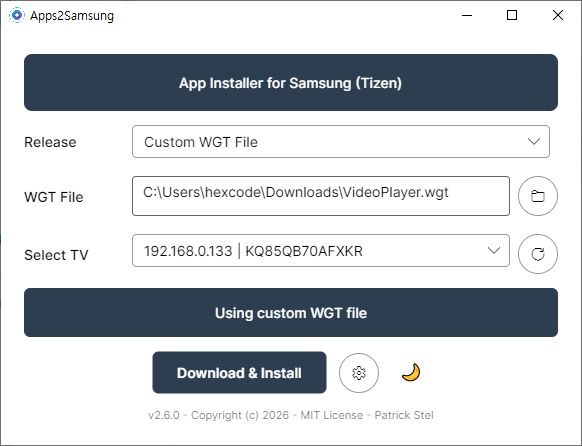
▲ Switch Release to 'Custom WGT File' and select the VideoPlayer.wgt you downloaded to install it.
By the way, the VideoPlayer I installed this way sounded promising by name, but turned out to be pretty limited in practice. Among community apps, VLC is the safe bet.
You can grab pre-compiled .wgt files for the Tizen community app collection here.
STEP 6 Verify and launch the installed app
Once installed, you'll find the app in Samsung's 'Downloaded apps' list in the Apps menu.
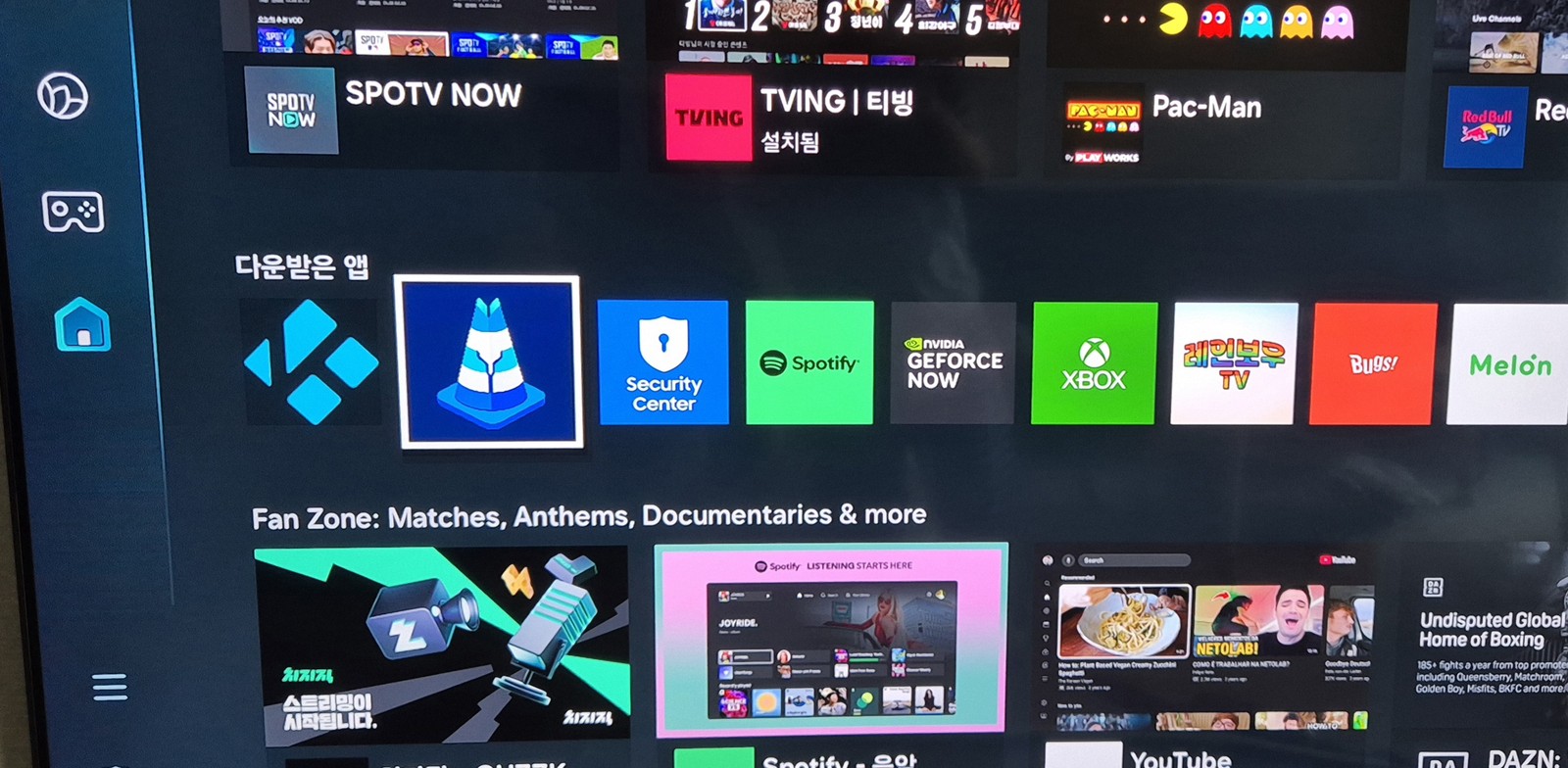
▲ VLC (cone icon), Kodi, and other community apps sit right alongside the official apps under 'Downloaded apps'.
Give it a run to confirm it works. Here's VLC running on the TV:
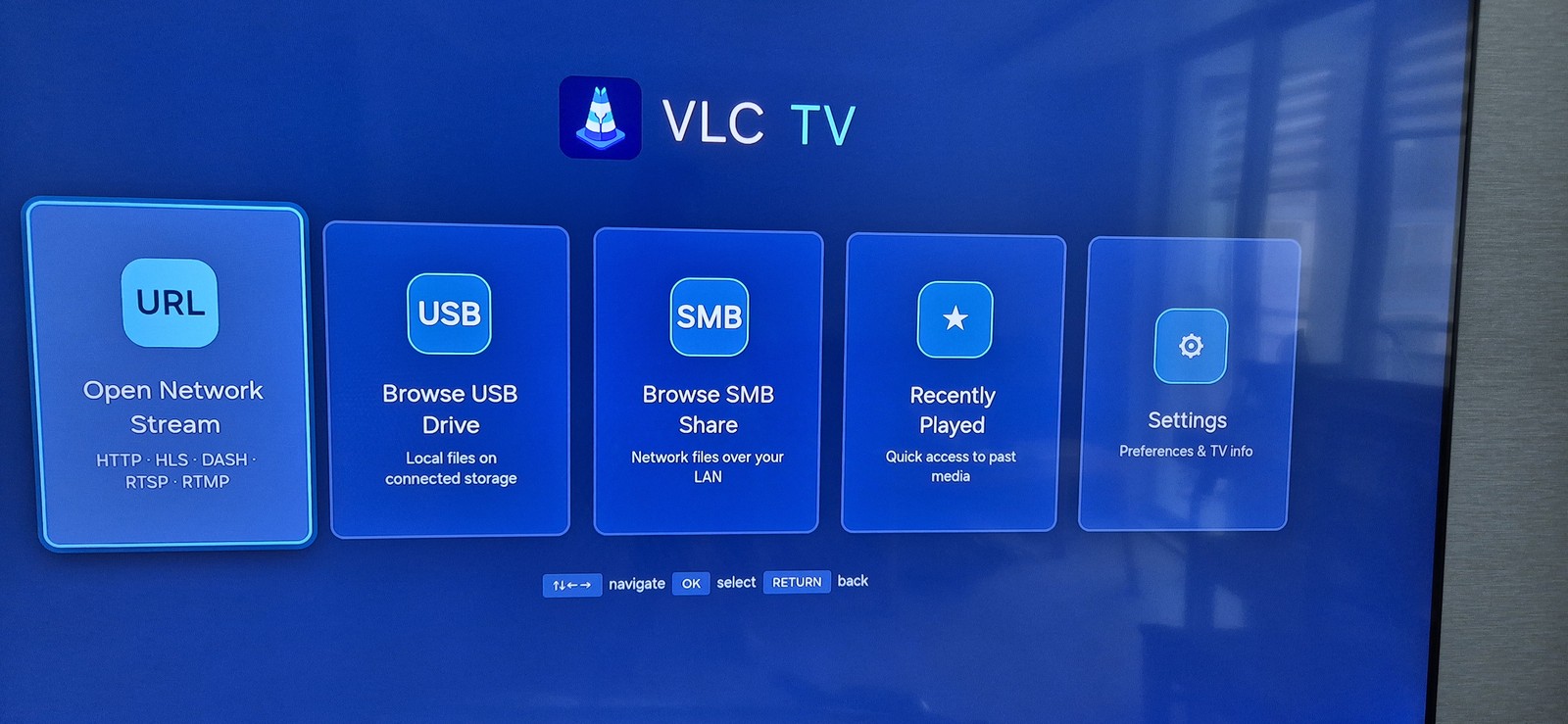
▲ VLC TV running on a Samsung TV. It supports Open Network Stream (URL), USB, SMB shares, and Recently Played.
Wrapping up — more community apps are coming
As you can see, it's easy to sideload custom wgt apps that Samsung's store doesn't offer. Just VLC's SMB/USB playback alone dramatically boosts what a Samsung TV can do.
These days people build Tizen apps easily even through vibe coding, so I expect the community to keep releasing more free apps. For example, the vlc-tizen-tv repo was clearly vibe-coded with Claude.
Handy apps keep landing in tizen-community-packages, so take a look if you're interested.
🎮 Related: One great use of Apps2Samsung is installing Moonlight to stream your own PC games to the big TV — no subscription. I wrote a full guide:
👉 Stream Your PC Games to a Samsung TV — Sunshine + Moonlight setup guide



댓글 없음:
댓글 쓰기