레이블이 Samsung TV인 게시물을 표시합니다. 모든 게시물 표시

2026년 7월 11일 토요일

Stream Your PC Games to a Samsung TV — Sunshine + Moonlight Setup Guide (Free GeForce Now Alternative)

Stream Your PC Games to a Samsung TV — Sunshine + Moonlight

Cloud gaming like GeForce Now costs a monthly subscription. But what if you used your own PC's graphics card to stream high-end PC games to the big Samsung TV in your living room? All you need is Sunshine (host) on the PC and Moonlight (client) on the TV. It's free. Here's a beginner-friendly walkthrough from install to actually playing a game.

I have an 85-inch TV, and when I first bought it I tried a month-long demo of Microsoft Xbox (cloud) and GeForce Now. I was impressed that a remote cloud PC could stream to my living-room TV so I could enjoy demanding games on a huge screen without stutter. But a monthly subscription just isn't reasonable for someone who games only occasionally, so after a few tests I dropped it.

Then I heard that Samsung TVs (Tizen) support Moonlight too, and tried it right away. The principle is identical to GeForce Now, except the server is my own home PC instead of the cloud. Zero subscription cost.

First, understand the setup (it's simple)

It's not complicated. Just two programs form a pair.

🖥️ PC — Sunshine (host / sender)

│   streams the game video in real time over your home Wi-Fi/LAN

📺 Samsung TV — Moonlight (client / receiver)

In other words, the PC actually runs the game, and the TV just receives and displays the video and sound. Your input (keyboard, mouse, gamepad) on the TV side is sent back to the PC. The TV needs no horsepower at all — the PC does all the heavy lifting.

What you need

PC (game server)A PC with a GPU hardware encoder. NVIDIA (recommended), or a recent AMD / Intel integrated GPU also works. Windows here.
TV (receiver)Samsung Smart TV (Tizen OS)
NetworkPC and TV on the same router (same network). Wired Ethernet on the PC is recommended (Wi-Fi causes artifacts and lag).
CostFree (both Sunshine and Moonlight are open source)

Why NVIDIA recommended? Sunshine compresses the game video in real time using your GPU's hardware video encoder. NVIDIA (NVENC) is the most proven; recent AMD (AMF) and Intel (QuickSync) work too. A CPU alone has too much latency, so a GPU encoder is effectively required.

Sources: LizardByte/Sunshine · Moonlight Setup Guide

STEP 1 Install Moonlight on the TV (via Apps2Samsung)

Moonlight isn't offered in Samsung's official TV app store, so you have to sideload it. Fortunately, the Apps2Samsung tool I covered previously lets you install Moonlight onto the TV from a Windows PC in just a few clicks.

Once Apps2Samsung is ready, pick Moonlight from the Release list and press Download & Install.
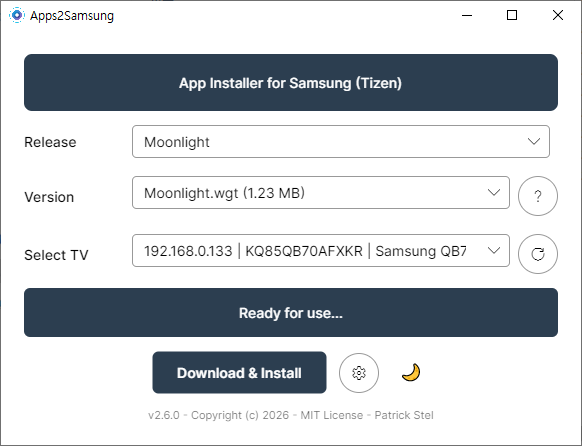
Selecting Moonlight in Apps2Samsung, ready to install

▲ Select Moonlight under Release in Apps2Samsung. With "Ready for use…" showing, click Download & Install.
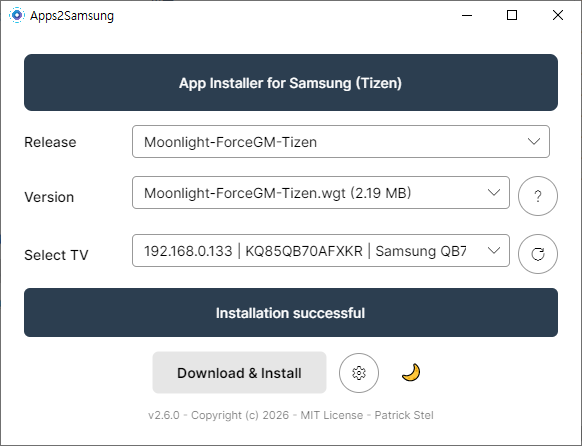
Moonlight installation completed in Apps2Samsung

▲ "Installation successful." Note: the Moonlight-ForceGM-Tizen build forces gamepad mode — a useful alternative if your controller isn't recognized.

After installing, you'll find Moonlight in Samsung's 'Downloaded apps' under the Apps menu.
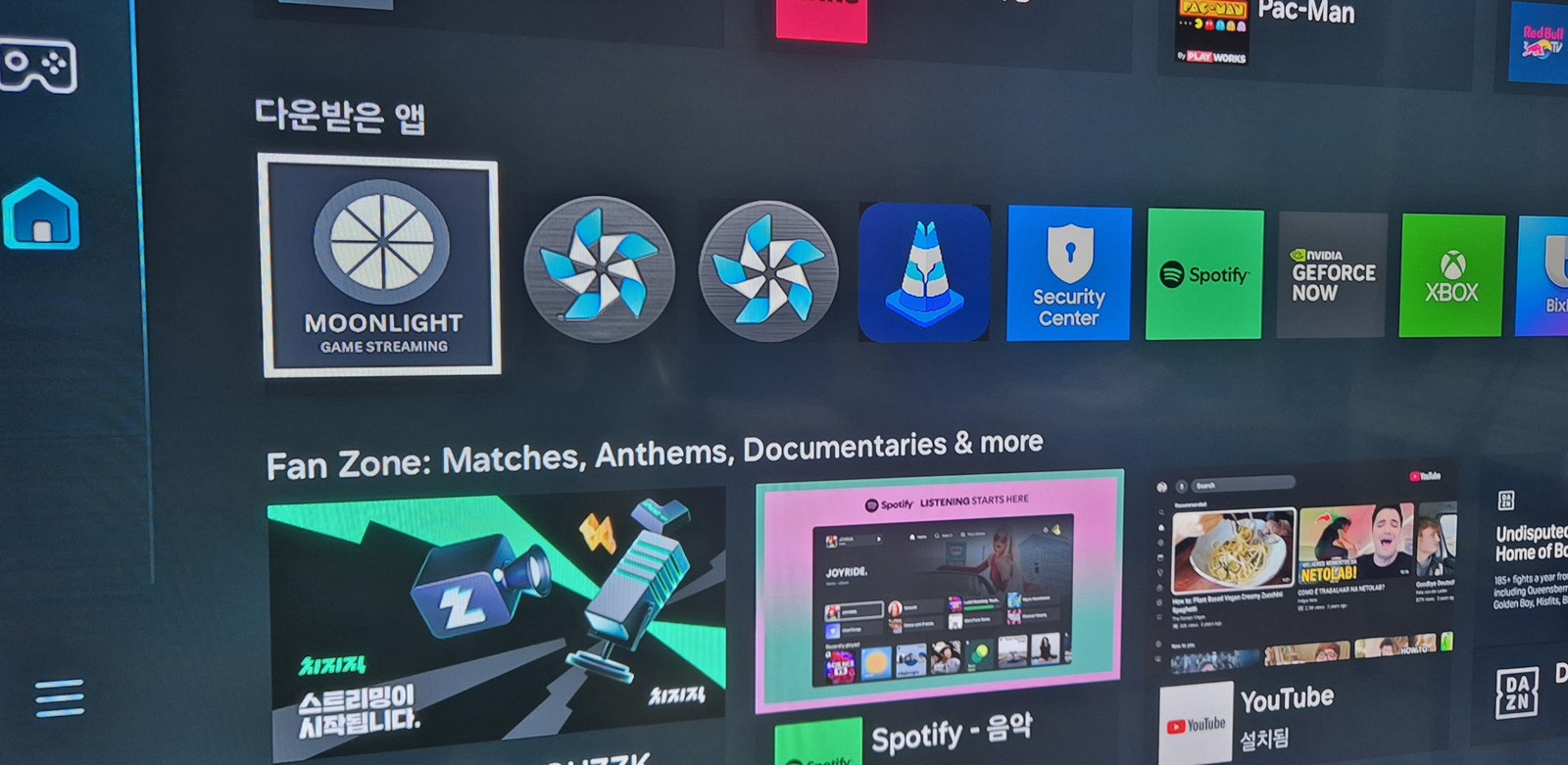
Moonlight app installed in the Samsung TV downloaded apps list

▲ MOONLIGHT GAME STREAMING sitting in 'Downloaded apps'. We'll launch it shortly during pairing.

STEP 2 Install Sunshine on the PC

Now for the PC that actually runs the games. Sunshine is an open-source program that turns your PC into a game-streaming server.

Download: github.com/LizardByte/Sunshine/releases — I grabbed the Windows installer, Sunshine-Windows-AMD64-installer.msi.
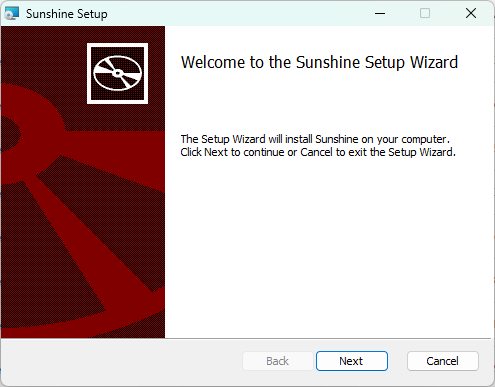
Sunshine setup wizard on Windows PC

▲ The Sunshine setup wizard. Just click Next and install with the defaults.

Launched it but no window appears? (That's normal)

After installing, when you launch Sunshine a command window flashes briefly and then nothing shows up. It didn't fail to start — it's running in the background. To configure and control it, click (right-click) the Sunshine icon in the system tray at the bottom-right and choose Open Sunshine.
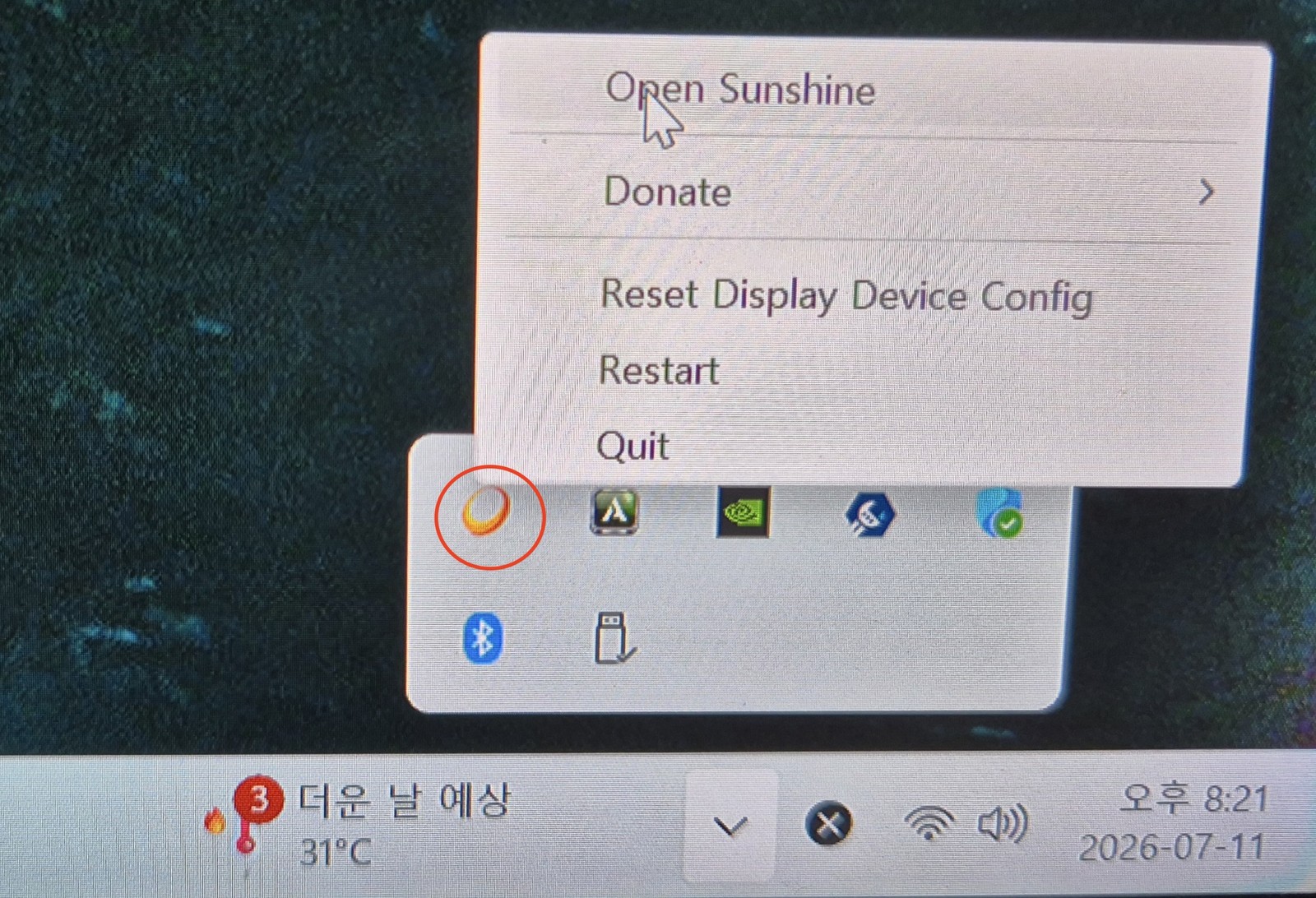
Right-clicking the system tray Sunshine icon and choosing Open Sunshine

▲ The sun-shaped Sunshine icon in the tray (red circle) → Open Sunshine. If the tray is hidden, click the ∧ button to expand it.

Clicking it opens the local web interface (Sunshine's control panel) in your browser. At https://localhost:47990 you'll get a certificate warning — since it's a local connection it's safe, so click [Advanced] → [Proceed] to continue.
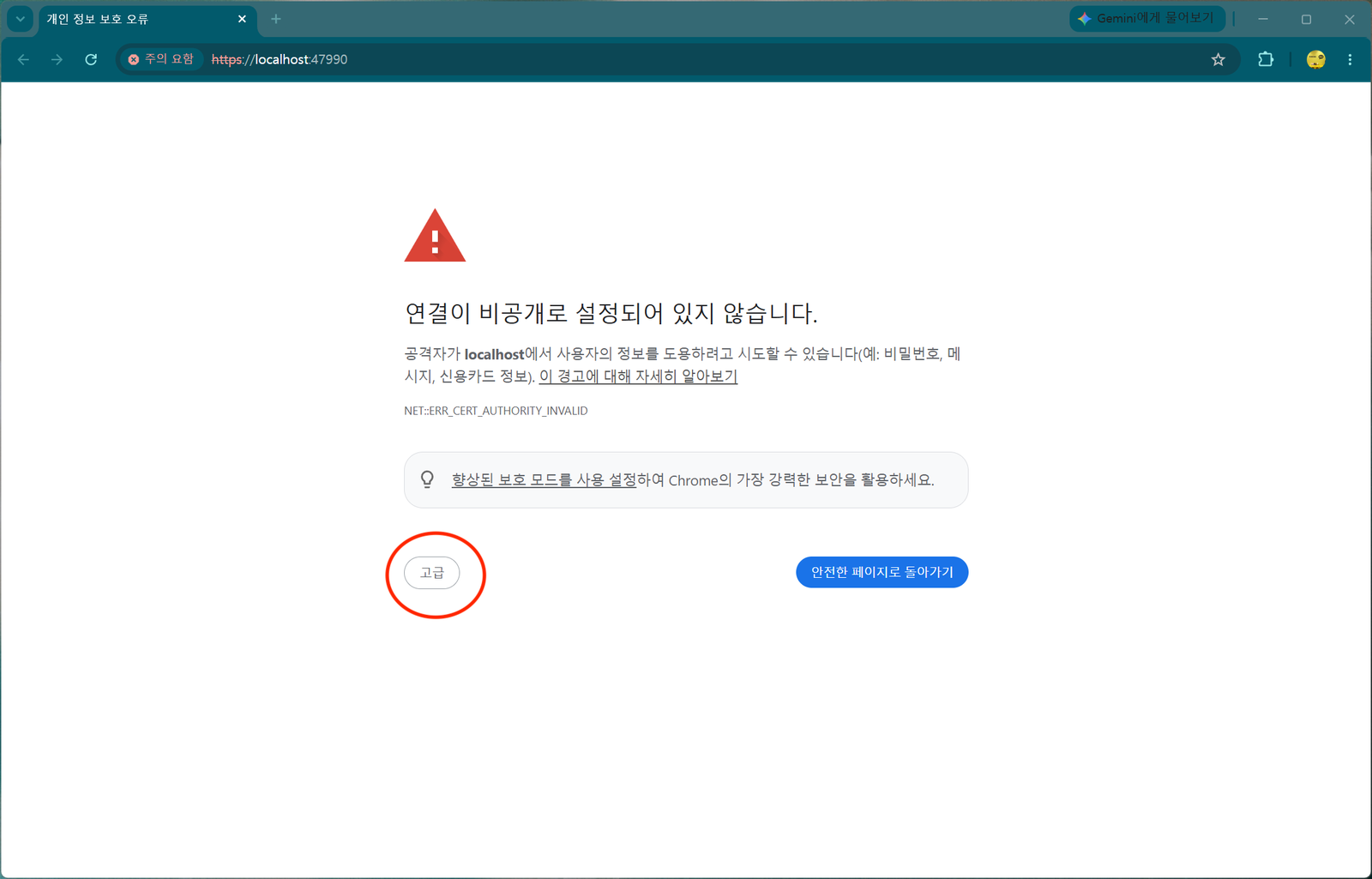
HTTPS certificate warning when opening the Sunshine web interface

▲ The "Your connection is not private" warning. Since you're connecting to your own PC, click [Advanced] (red circle) to proceed.

On first connect it asks you to set a password for the web interface. The default username is sunshine. It's for security; since I never connect from outside, I kept it simple. After setting the password, you're returned to the login screen — log in with it.

Install the ViGEmBus driver for gamepads

After logging in, the home screen warns that the "ViGEmBus Driver is not installed". This is the driver that emulates a virtual gamepad (controller); press Fix Now and it installs automatically.
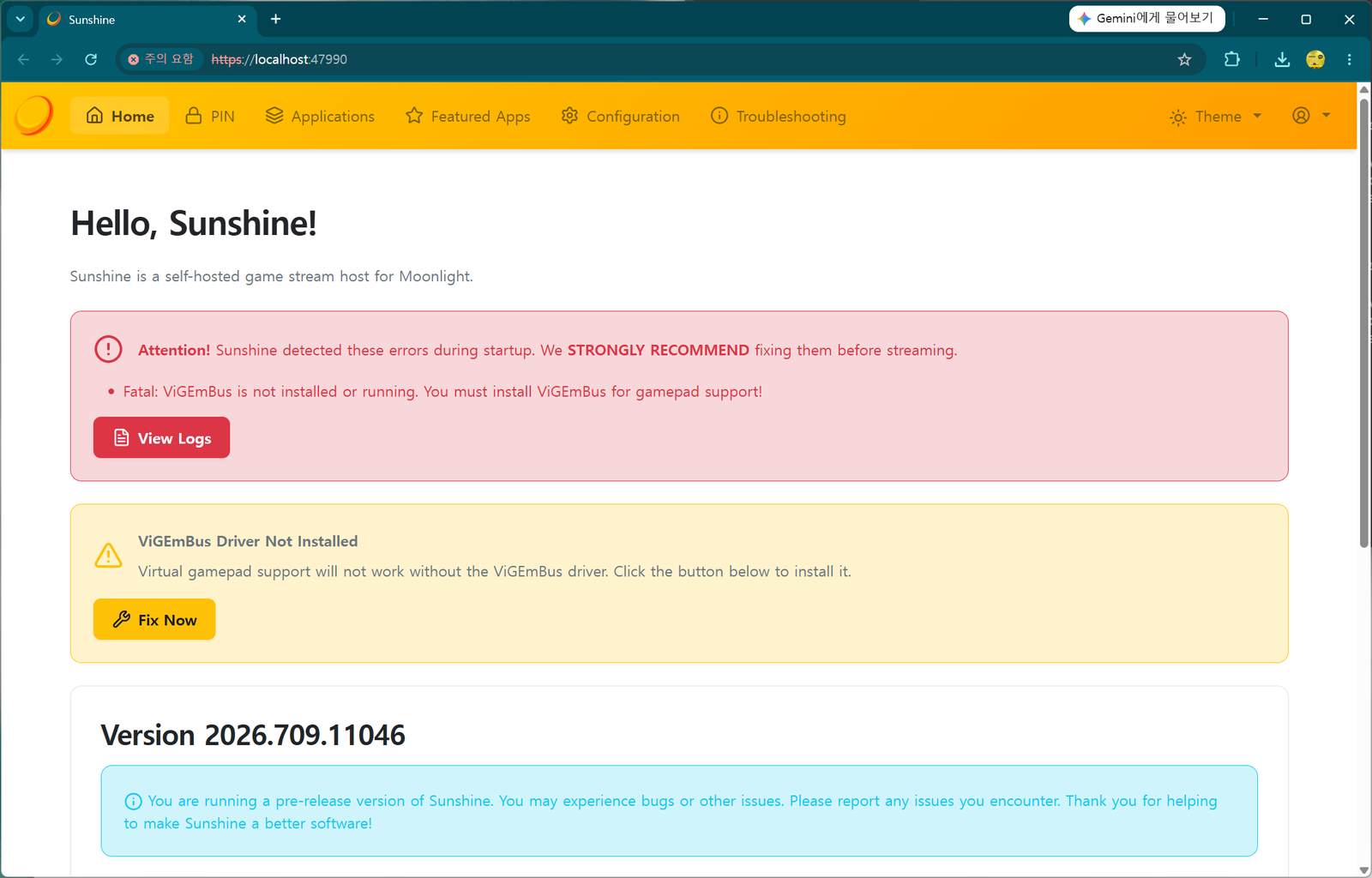
Sunshine home warning that ViGEmBus driver is missing with a Fix Now button

▲ The "Fatal: ViGEmBus is not installed" warning. Click Fix Now in the yellow box to auto-install.
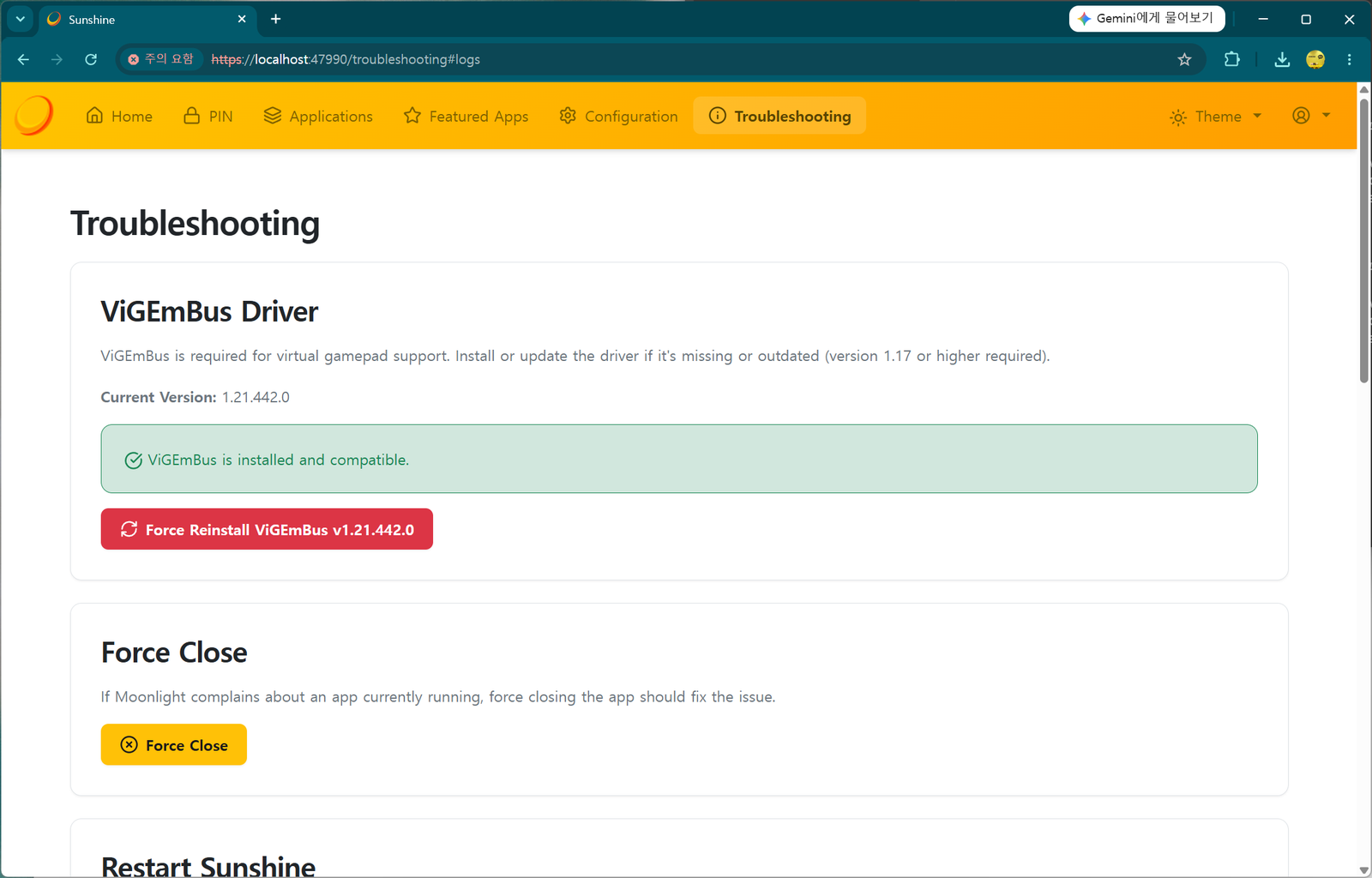
Sunshine troubleshooting screen showing ViGEmBus driver installed

▲ The Troubleshooting screen after installing. A green "ViGEmBus is installed and compatible." means success.

Once everything is installed and the errors are gone, you'll see a clean Sunshine home screen. The PC side is now ready.
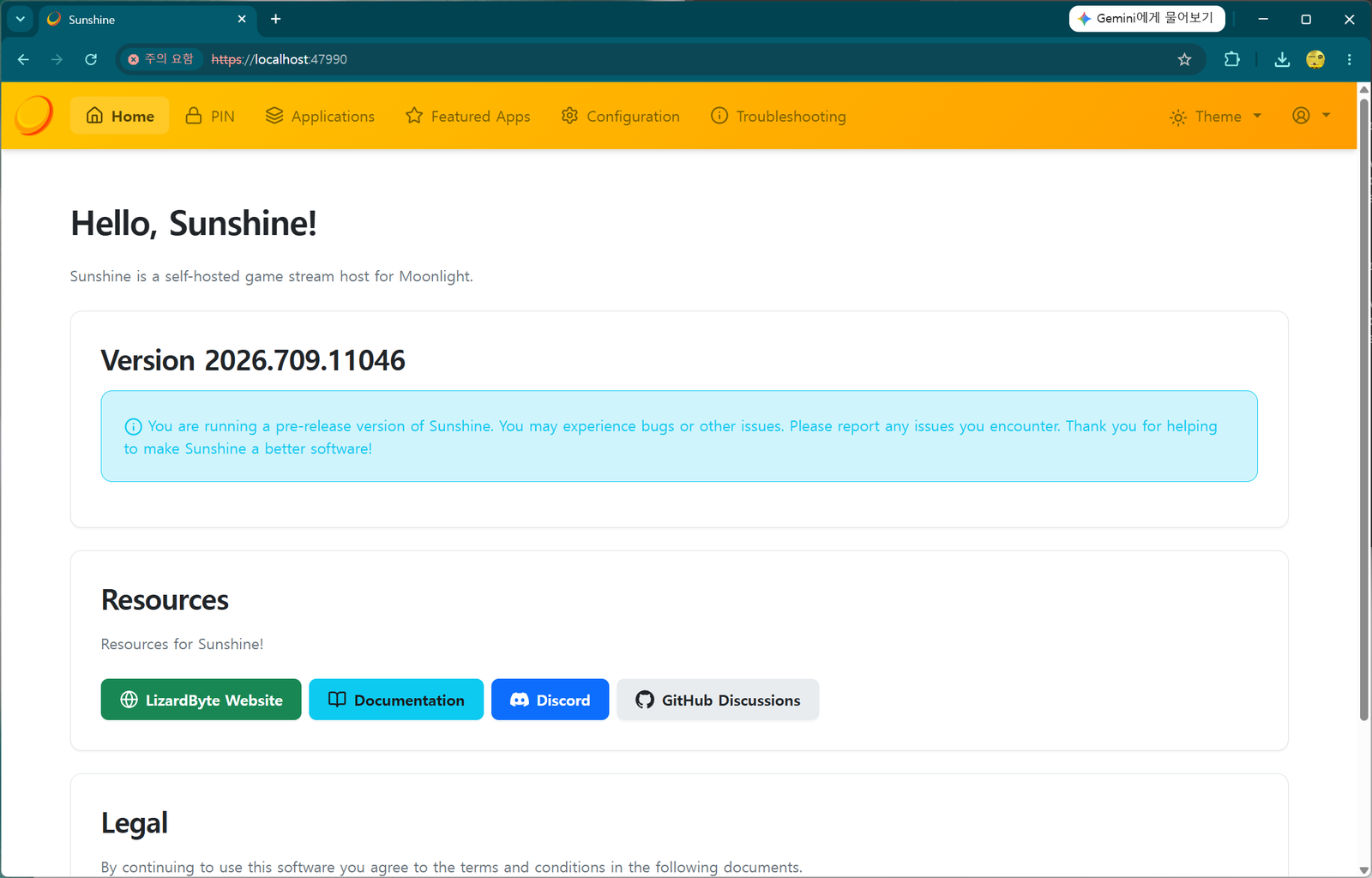
Sunshine home screen ready with no errors

▲ The "Hello, Sunshine!" home screen with the warnings cleared. (The pre-release note is normal.)

STEP 3 Pair the TV and PC — speed matters

Now connect (pair) the TV and PC. Launch the Moonlight app on the TV's Apps, and under Add Host you can enter the PC's IP address.
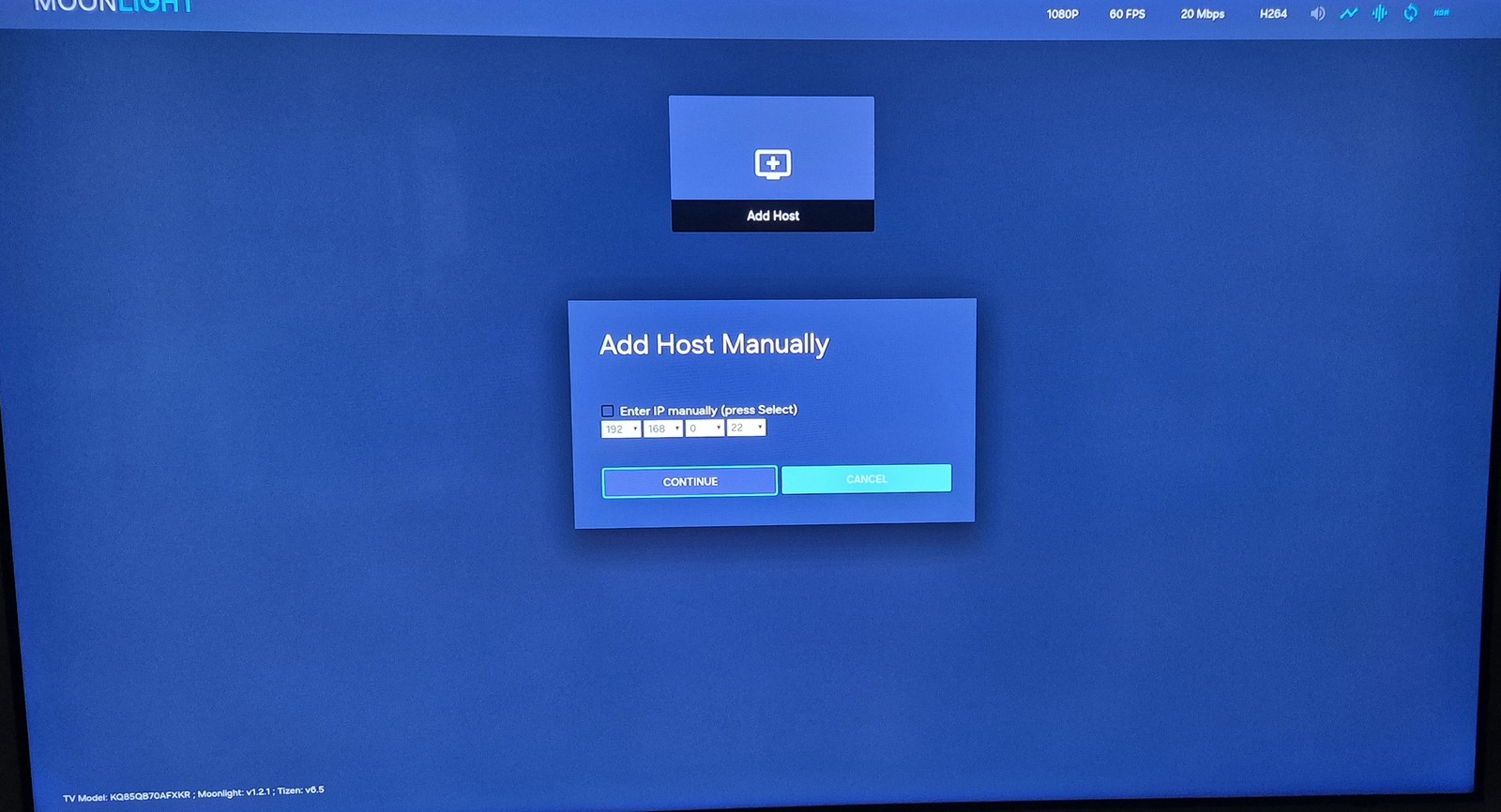
Entering the PC IP under Add Host in TV Moonlight

▲ Moonlight's 'Add Host Manually'. Check "Enter IP manually," type the PC's IP (e.g. 192.168.0.x), and press CONTINUE.

How to find the PC IP: on the PC, open Command Prompt (cmd), type ipconfig, and check the "IPv4 Address." It's usually 192.168.x.x.

After entering the IP, Moonlight shows a pairing code (PIN).

Pairing PIN code shown by Moonlight, example 4569

▲ The PIN shown by TV Moonlight (here 4569). This number is a random example that changes every time — always read the actual code on your own screen.

Now hurry over to the PC. The window is short.

In the PC's Sunshine web interface → PIN tab, enter the pairing code shown on the TV, type a device name (e.g. SamsungTV), and press Send.

⚠️ The code 4569 in these screenshots is only an example. The pairing code is freshly generated at random every time, so it will differ — do not type 4569. Read the code currently on your TV screen and enter that. It also expires within tens of seconds, so as soon as you see the PIN on the TV, go to the PC and enter it fast. If it expires, just retry in TV Moonlight for a new code.

Entering the pairing code and device name in the Sunshine web PIN tab and clicking Send

▲ The PIN tab in the Sunshine web UI. Enter the code (4569) and device name (SamsungTV), then Send. As the warning says, only pair devices you trust.

When pairing succeeds, the connected PC appears next to Add Host in Moonlight, and clicking it shows launch options like Desktop / Steam Big Picture.
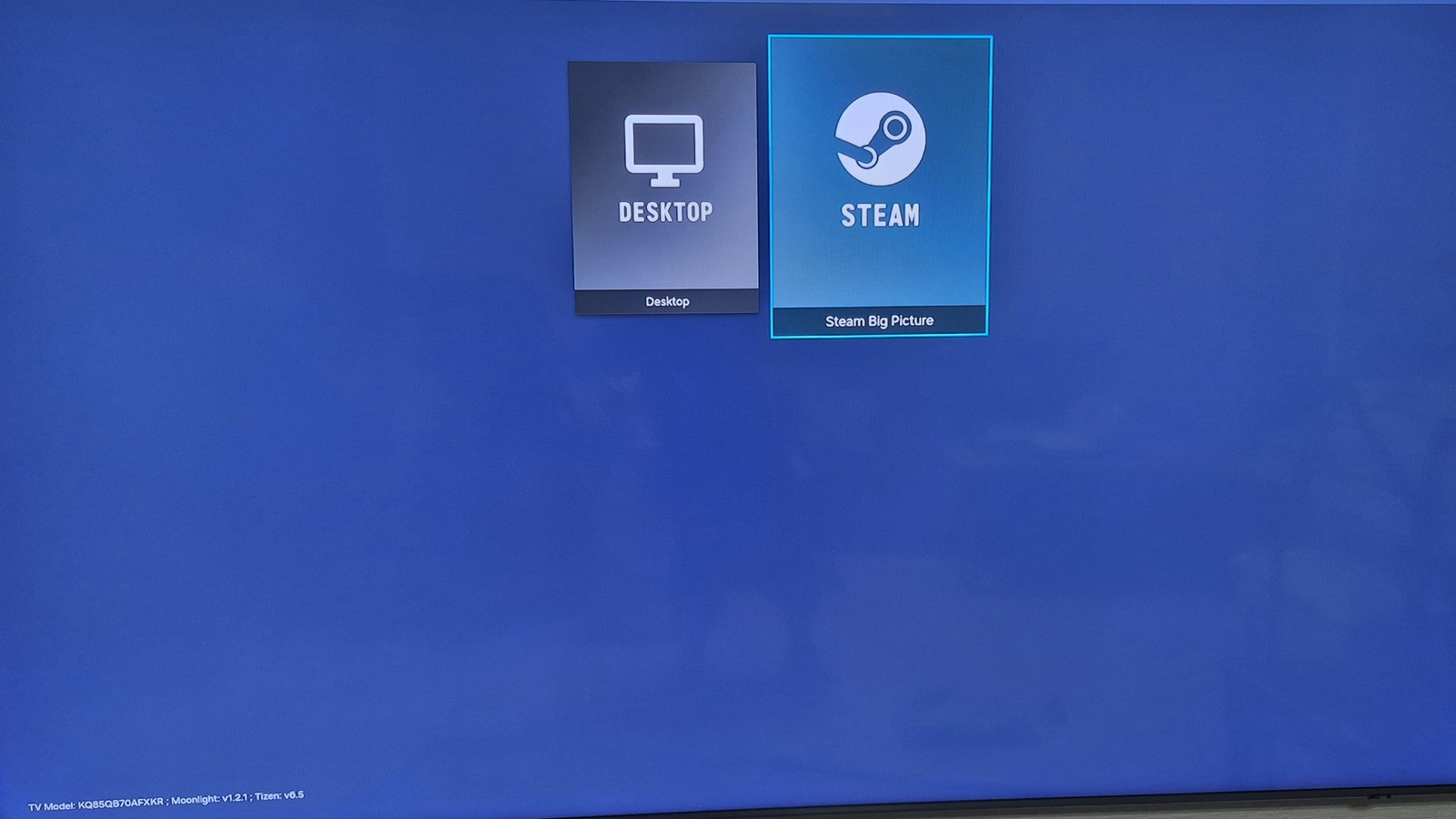
Moonlight showing Desktop and Steam Big Picture options after pairing

▲ Pairing done. You can choose Desktop (the raw PC desktop) or Steam Big Picture (Steam's TV mode).

STEP 4 Actually play — Steam Big Picture

For a test, since I have Steam installed on the PC, I chose Steam Big Picture and launched a game from my Steam library.
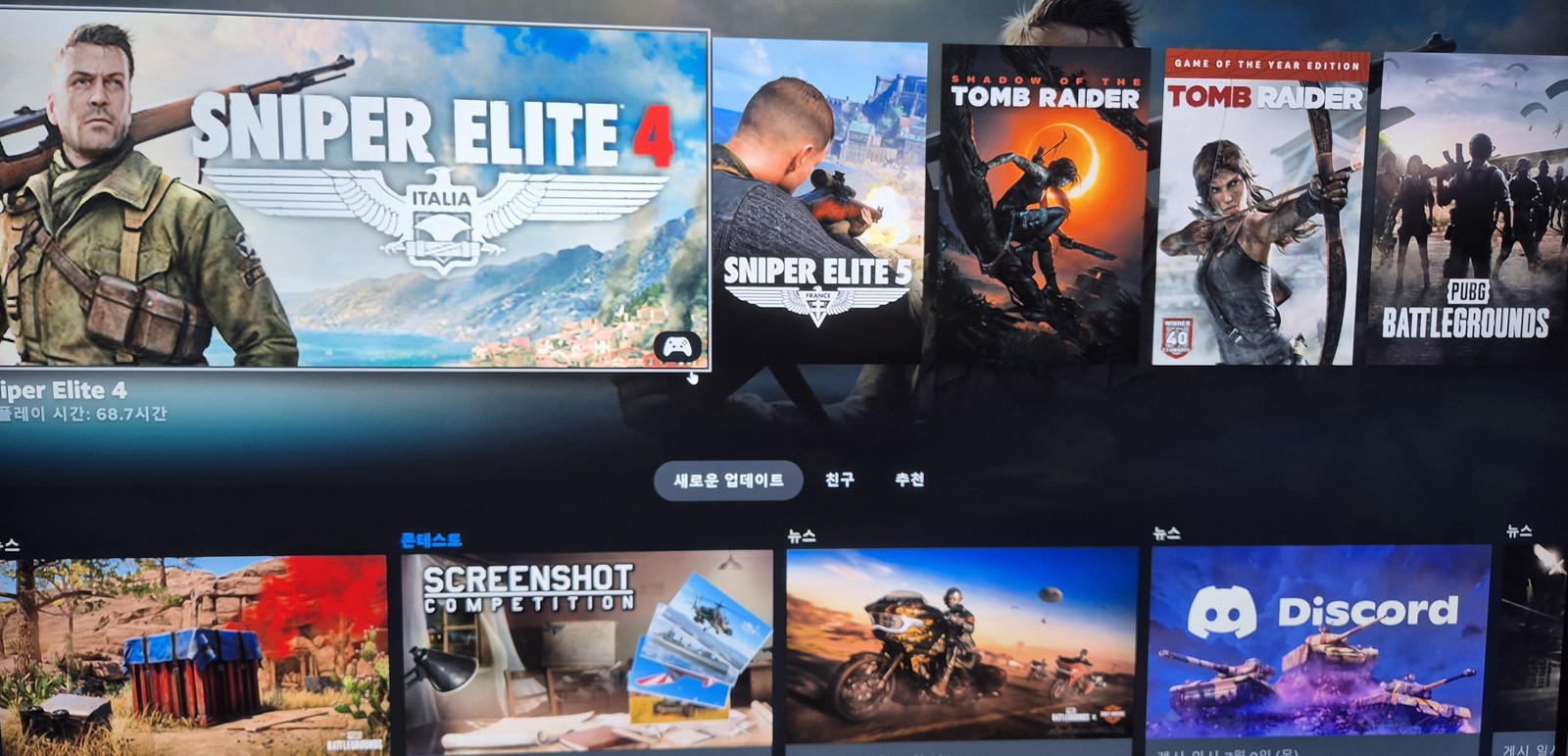
Steam Big Picture game library running on a Samsung TV

▲ The Steam Big Picture library on the TV. Your PC's game list spreads across the big screen as-is.

Input devices (keyboard/mouse/gamepad) are a must

To play PC games comfortably on the TV, you need a gamepad or a keyboard/mouse connected. My Logitech keyboard and mouse (from the PC) support pairing up to 3 devices, so I connected one channel to the TV over Bluetooth.
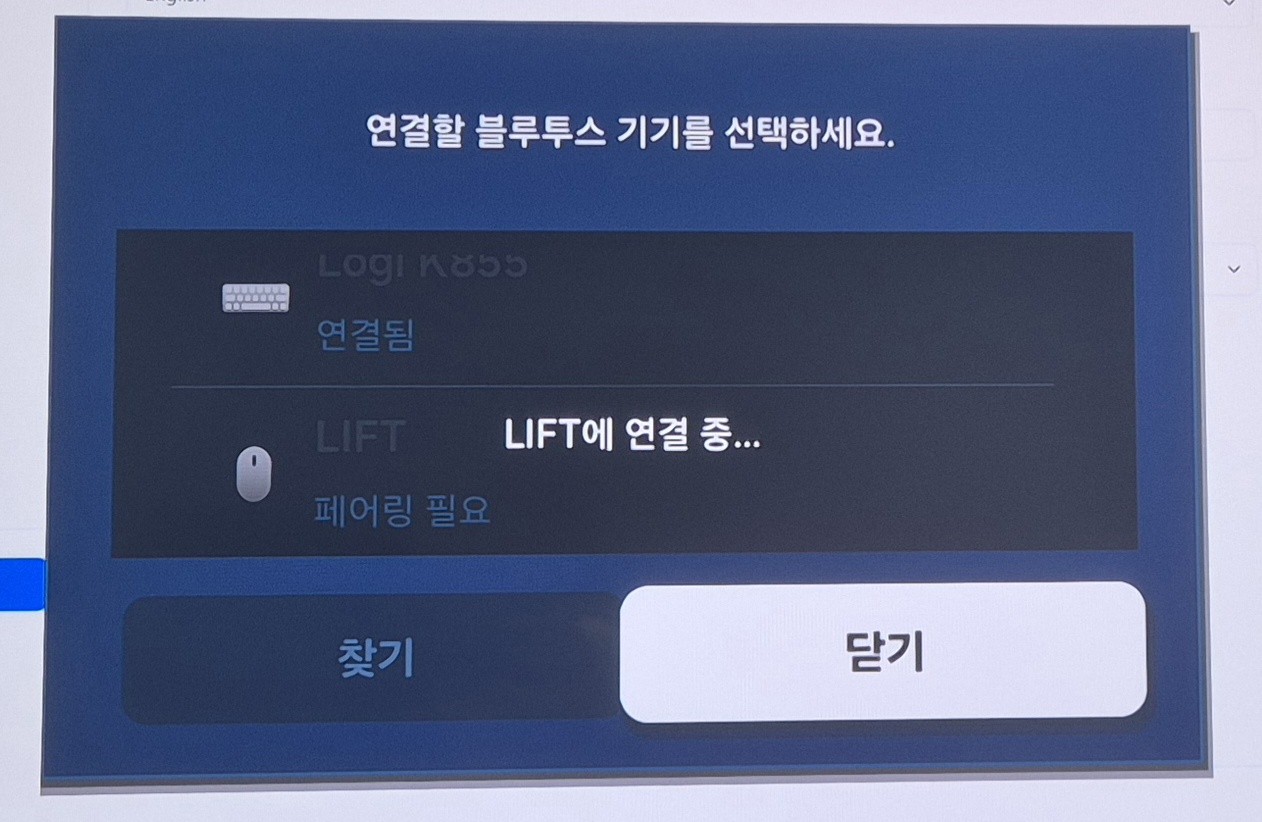
Connecting a Logitech keyboard and LIFT mouse to the Samsung TV over Bluetooth

▲ Connecting a Logitech keyboard (K855) and LIFT mouse under Samsung TV's Bluetooth device list. Multi-pairing peripherals are handy here.

As a test I ran Sniper Elite 4. Because I was on Wi-Fi, there was a little image smearing (motion blur).

Sniper Elite 4 running via streaming on a large Samsung TV

▲ Sniper Elite 4 on the big TV. In sudden scenes like explosions, the Wi-Fi smearing is slightly visible.

Still, the keyboard and mouse response was fast, like on the PC, and the lag was by no means bad enough to make it unplayable. The sheer satisfaction of playing my PC games on a huge TV was more than enough.

Wrap-up — want better quality? Go wired

The appeal here is playing with your PC's full power on a big TV, with no monthly subscription. In summary:

  • Moonlight on the TV (receiver), Sunshine on the PC (host). Both free and open source.
  • Install TV Moonlight via Apps2Samsungsee the previous post.
  • On the PC: install Sunshine → ViGEmBus → PIN pairing, in that order.
  • If image smearing bothers you, connect the PC by wired (gigabit) Ethernet — far more stable than Wi-Fi.
  • For input, connect a multi-pairing keyboard/mouse or a gamepad to the TV over Bluetooth.

It's genuinely fun on a big screen, so if you have an NVIDIA PC and a Samsung TV, give it a try.

💡 You can also use it as a remote desktop, not just for games. After pairing, if you pick Desktop instead of Steam in Moonlight, your PC desktop appears on the TV. Connect a Bluetooth keyboard/mouse and you can control your PC from the couch on the big TV (web browsing, YouTube, documents, etc.) — basically a remote desktop.

※ Installing Moonlight uses Samsung's Developer Mode to sideload a community app; it's not covered by official Samsung support, and installation/use is at your own risk. Sunshine and Moonlight are open source — only play games you legitimately own.

Install Unofficial Apps on a Samsung TV with Apps2Samsung (VLC, Jellyfin, and more)

Install Unofficial Apps on a Samsung TV with Apps2Samsung (VLC, Jellyfin & more)

The Samsung TV app store has no VLC and no Jellyfin. But with Samsung's own Developer Mode and the open-source tool Apps2Samsung, you can sideload Tizen community apps (.wgt) in just a few clicks. Here's the full walkthrough — from enabling Developer Mode to actually installing and running VLC — based on the latest interface.

Apps like Jellyfin and VLC aren't available in the Samsung TV app store, so you can't install them the normal way. But many open-source communities offer great free apps, and you can install them easily.

There's only one hurdle: putting your Samsung TV into Developer Mode. This isn't a hack — it's a feature Samsung officially built into Tizen TVs, so it's not hard. Here's how.

STEP 1 Enable Developer Mode on the TV

First, open the Apps screen on your TV and go to Settings.

Navigating to Settings on the Samsung TV Apps screen

▲ The Samsung TV Apps screen. Move to the gear-shaped Settings icon at the bottom.

On the Settings screen, press 1 2 3 4 5 in order on the remote's number keys, then press OK. The Developer Mode dialog appears.

Don't see number buttons on your newer remote?

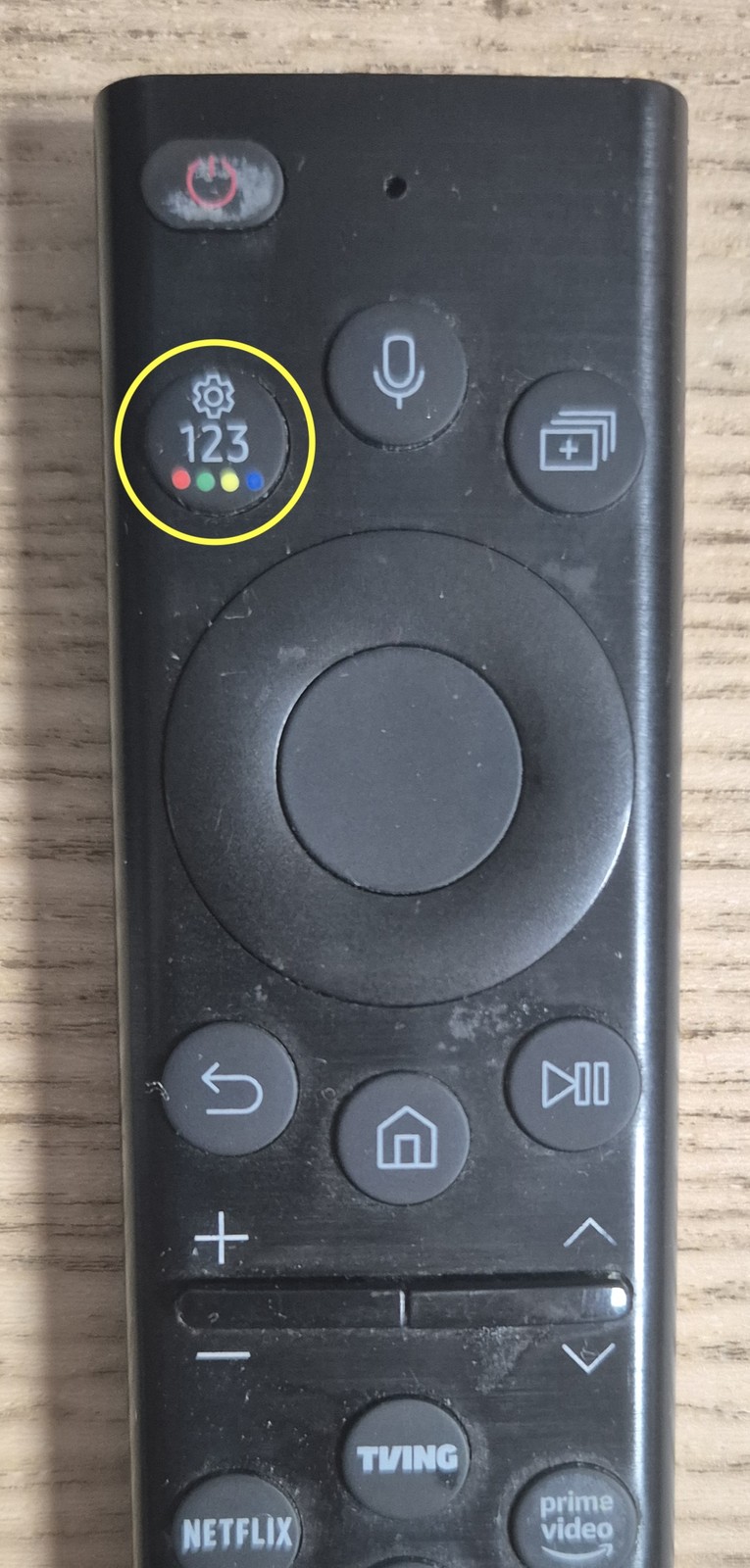
Recent Samsung Smart Remotes have no dedicated 0–9 buttons, but they do have a "123" button (yellow circle in the photo below). Press that 123 button to bring up an on-screen number pad, then use it to enter 1 2 3 4 5.

Location of the 123 button on the Samsung Smart Remote

▲ The "123" button on the Samsung Smart Remote (yellow circle). Press it to pop up an on-screen number pad and enter 12345.

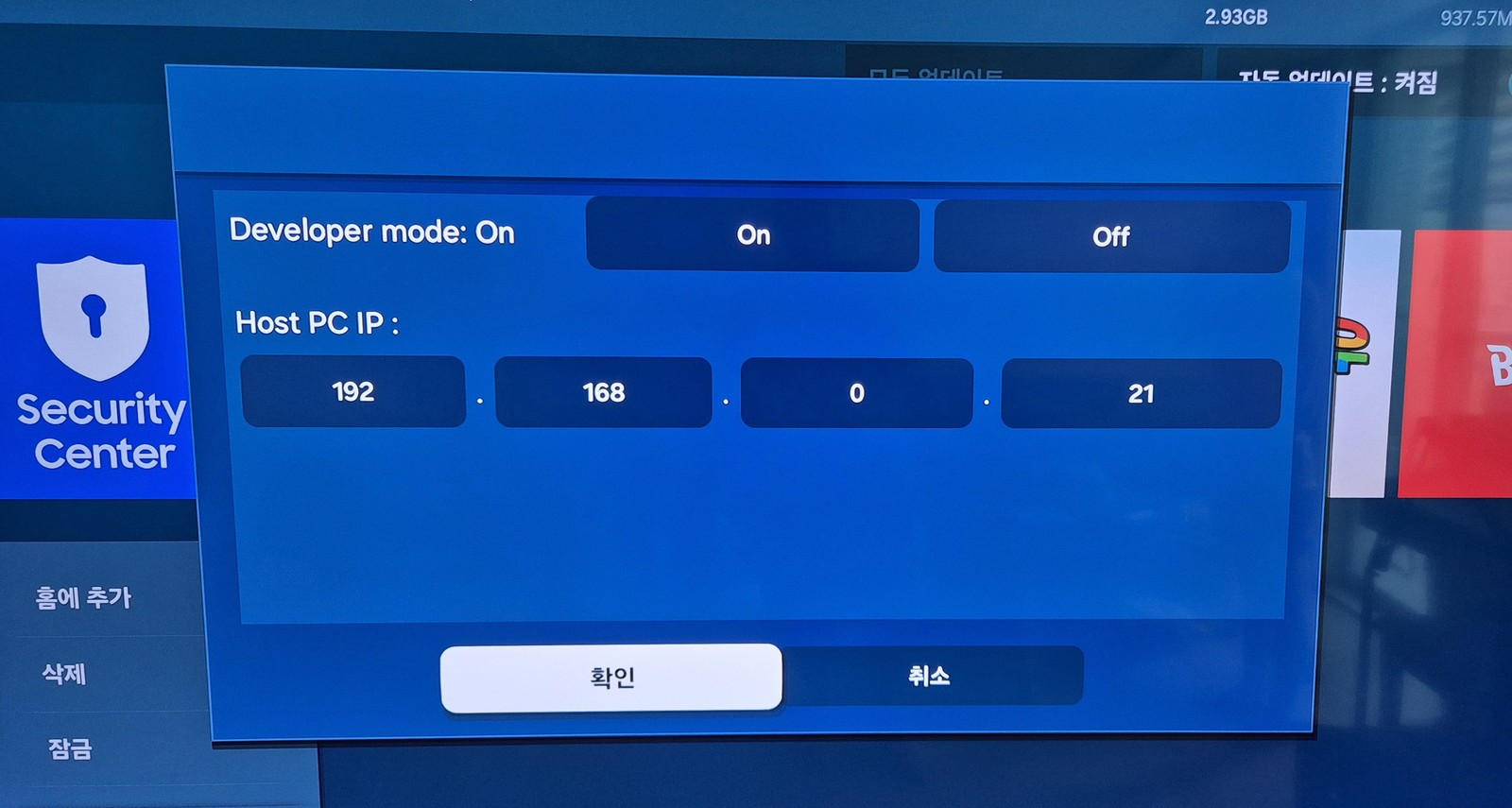
In the Developer Mode dialog, set two things:

  • Developer mode = On
  • Host PC IP — the IP address of the Windows PC that will upload and control the apps.
Developer mode On and Host PC IP entry screen

▲ Set Developer mode to On, enter your Windows PC's IP (example: 192.168.0.21) in Host PC IP, and confirm.

My Windows PC is 192.168.0.21, so I entered that. Use your own PC's IP. For security, apps can only be uploaded from the PC IP registered here.

How to find your Windows PC IP: open Command Prompt (cmd), type ipconfig, and look at the "IPv4 Address," or check Settings → Network & Internet. It's usually in the form 192.168.x.x.

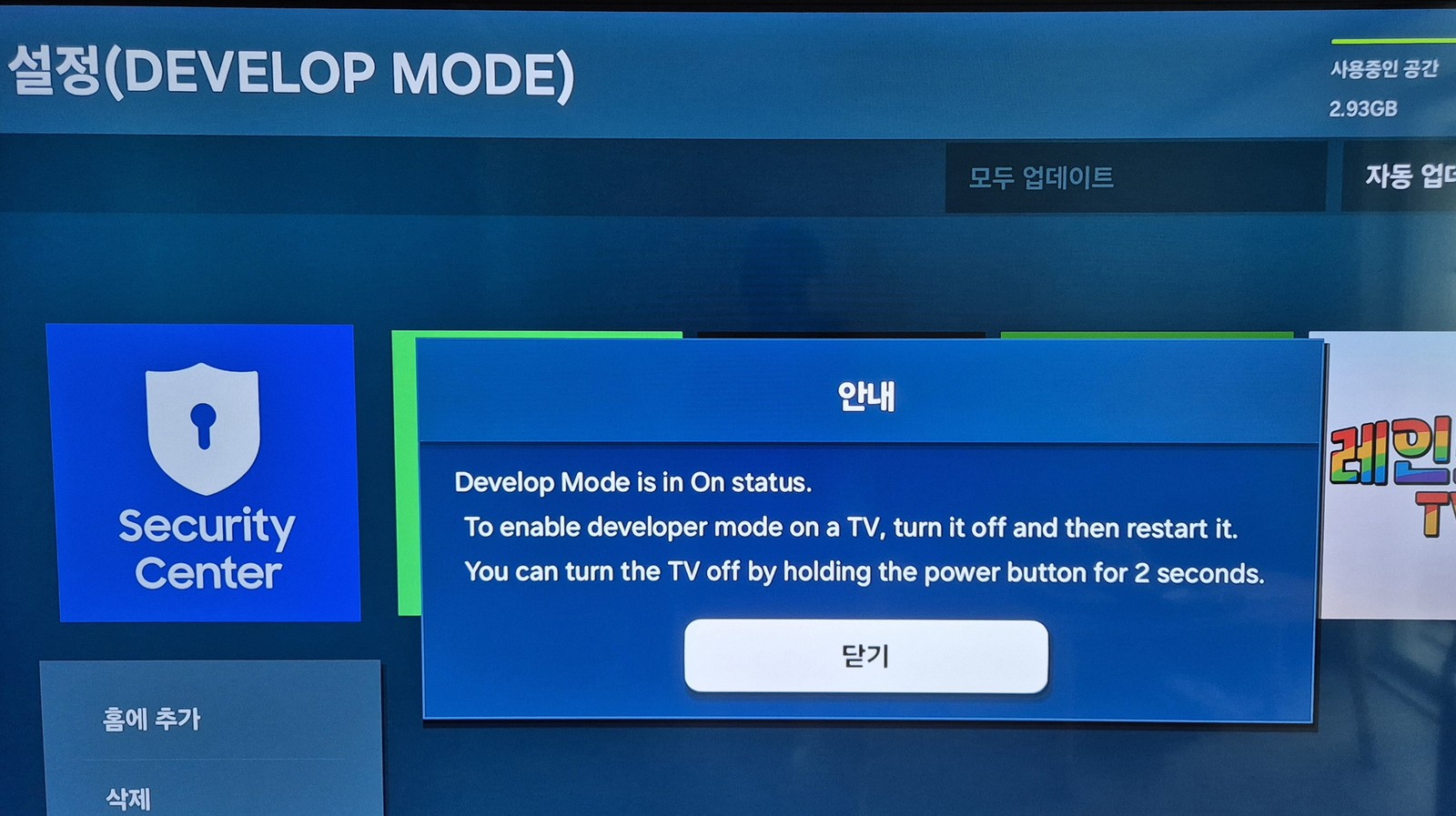
Once set, turn the TV off and fully unplug the power cable to reboot it. Developer Mode only takes effect after a restart.

Popup telling you to restart the TV to apply Developer Mode

▲ "Develop Mode is in On status. …turn it off and then restart it." The restart notice popup.

The on-screen message "You can turn the TV off by holding the power button for 2 seconds" means exactly that — holding the power button for 2 seconds turns the TV off. You can power it off that way, or, as I did, simply unplug the power cord and plug it back in.

STEP 2 Check the TV's IP address

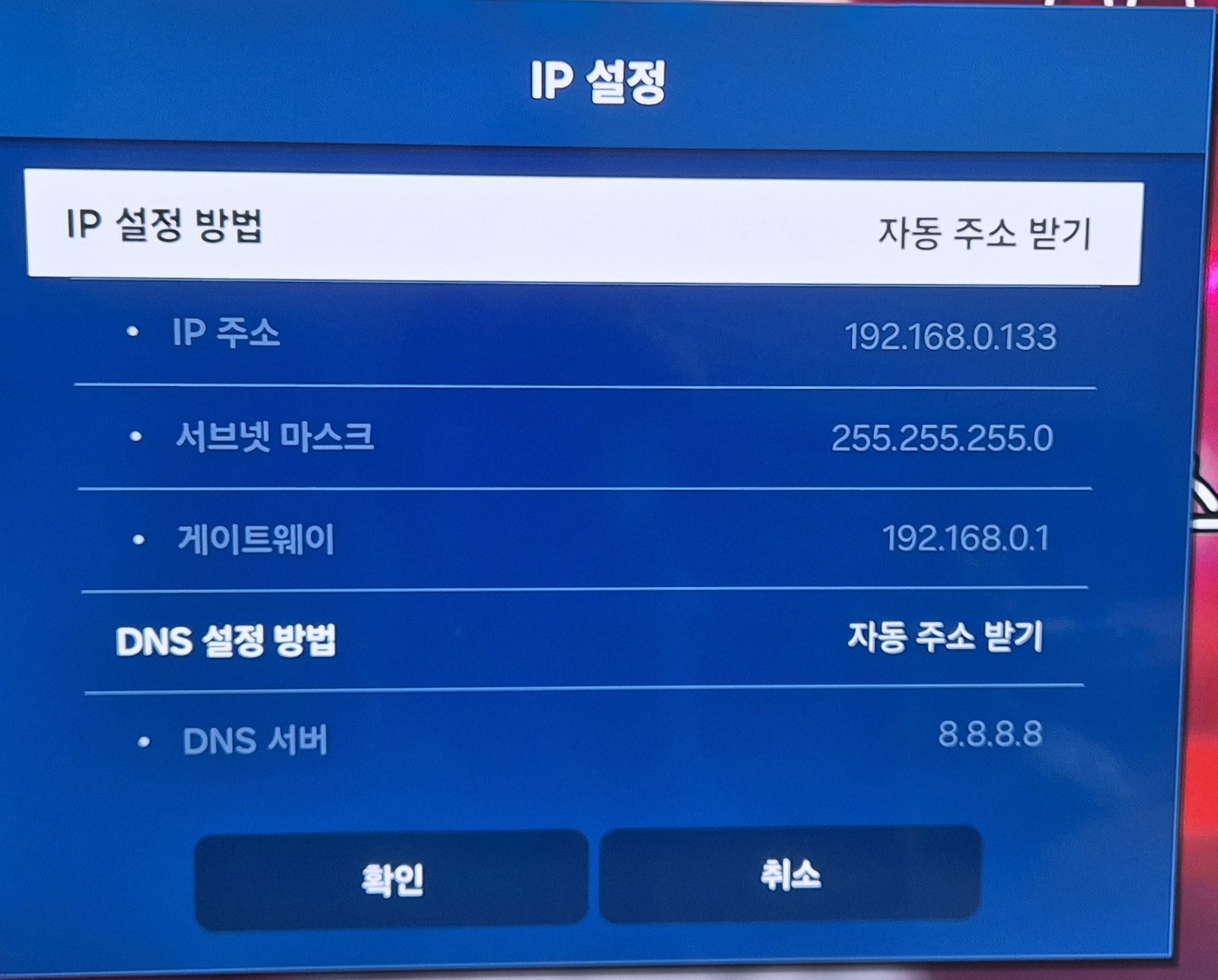
You need to know the IP of the target — that is, which IP the TV is using. Check it under Settings → Network.

Checking the TV IP on the Samsung TV network settings screen

▲ The TV's IP settings screen. In this example the TV IP is 192.168.0.133. You'll use this address later.

Alternatively, log into your router's admin page and check which IP the Samsung TV was assigned.

The TV and PC must be on the same network (same router). Don't mix up the Host PC IP (STEP 1) and the TV IP (STEP 2). Host PC IP = your computer; TV IP = the target TV.

STEP 3 Download and install Apps2Samsung

On your Windows PC, download the latest version of Apps2Samsung.

Download: github.com/Apps2Samsung/Apps2Samsung/releases — as of July 2026, v2.6.0 is the latest (previous stable: v2.5.7).

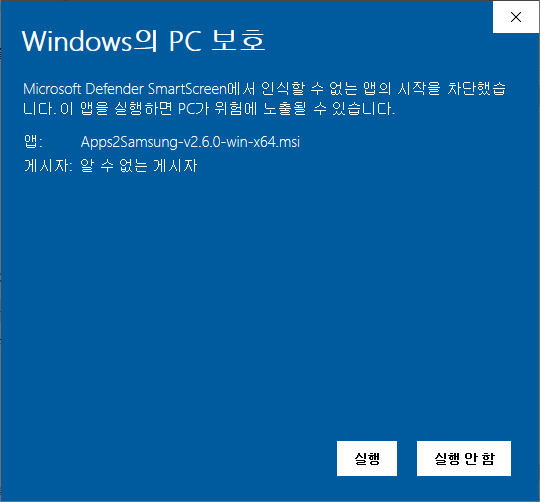
Run the downloaded .msi to install. Because it's not code-signed, Windows SmartScreen shows a warning, but it's not a harmful app — dismiss the warning and continue.

Windows SmartScreen warning about the unsigned Apps2Samsung installer

▲ The "Windows protected your PC" SmartScreen warning. Click [More info] → [Run anyway] to proceed.

The SmartScreen warning simply means the publisher is unknown, not that it's malware. Still, for peace of mind, only download from the official GitHub release above. Apps2Samsung is MIT-licensed open source, so its code is public.

STEP 4 Connect to the TV with Apps2Samsung

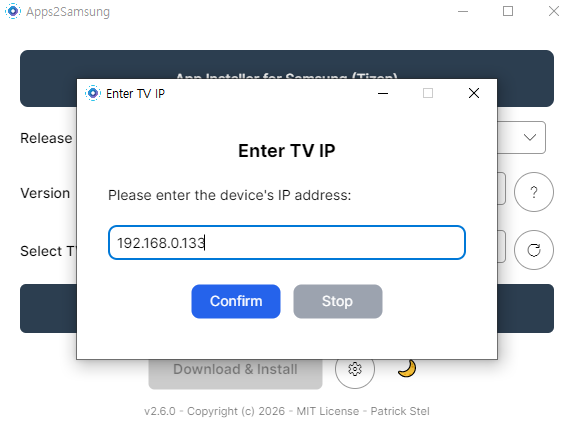
After installing, launch Apps2Samsung and it finds the TV automatically. If it doesn't, enter the TV IP manually (the address from STEP 2).

Entering the TV IP manually in Apps2Samsung

▲ In the 'Enter TV IP' window, type the TV's IP (192.168.0.133) and click Confirm.

If it can't find the TV, you'll get an error like this:

Invalid device IP / device not found error

▲ "Invalid device IP or device not found." / "No devices found" error.

The usual causes are:

  • Developer Mode wasn't enabled properly (including forgetting to reboot).
  • The Host IP was set wrong in Developer Mode (wrong Windows PC IP).
  • The TV and PC are not on the same network.

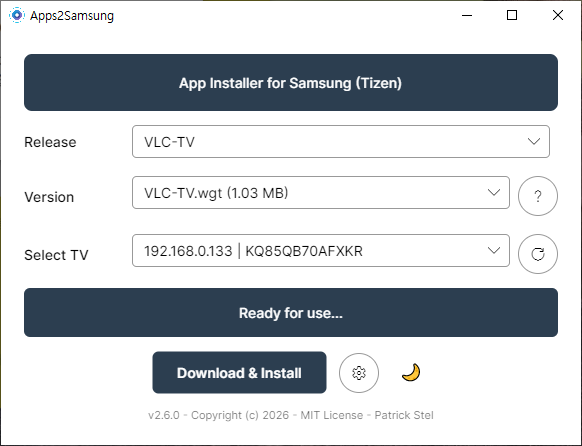
When Developer Mode is set up correctly, Apps2Samsung finds the TV right away on launch.

Apps2Samsung detecting the TV and ready to use

▲ When the TV IP and model appear under 'Select TV' and it says "Ready for use…", you're good to go.

STEP 5 Install an app — VLC as the example

Now you can install apps freely. The most useful community app is probably VLC, so as an example I installed VLC-TV. Pick the app under Release and press Download & Install.

Selecting VLC-TV with the Download and Install button enabled

▲ Choose VLC-TV under Release and VLC-TV.wgt under Version, and the 'Download & Install' button activates.

When installation finishes, the developer asks you to "Buy me a beer" as a donation. Feel free to support if you like — or not.

VLC-TV install success with a donation QR code

▲ "VLC-TV has been successfully installed!" The QR code is a donation link for the developer.

If installation fails

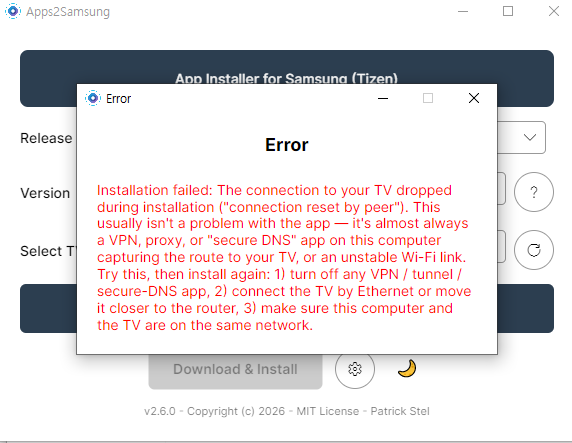
Sometimes you'll hit an error saying the connection dropped during installation:

Installation failed connection dropped error screen

▲ "Installation failed: The connection to your TV dropped…" This is more often a network issue than an app problem.

As the message itself notes, this is usually caused by a VPN, proxy, or "secure DNS" app on the PC hijacking the route to the TV, or an unstable Wi-Fi link. Fixes: (1) turn off any VPN/tunnel/secure-DNS app, (2) connect the TV by Ethernet or move it closer to the router, and (3) make sure the PC and TV are on the same network.

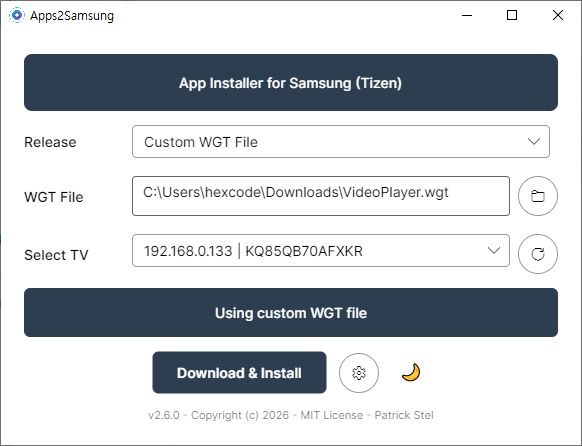
When I hit this error, I worked around it by downloading the wgt file myself and uploading it directly. In Apps2Samsung, choose Custom WGT File and point it at the downloaded .wgt file.

Uploading a downloaded wgt file via Custom WGT File

▲ Switch Release to 'Custom WGT File' and select the VideoPlayer.wgt you downloaded to install it.

By the way, the VideoPlayer I installed this way sounded promising by name, but turned out to be pretty limited in practice. Among community apps, VLC is the safe bet.

You can grab pre-compiled .wgt files for the Tizen community app collection here.

github.com/Apps2Samsung/tizen-community-packages → Releases

STEP 6 Verify and launch the installed app

Once installed, you'll find the app in Samsung's 'Downloaded apps' list in the Apps menu.

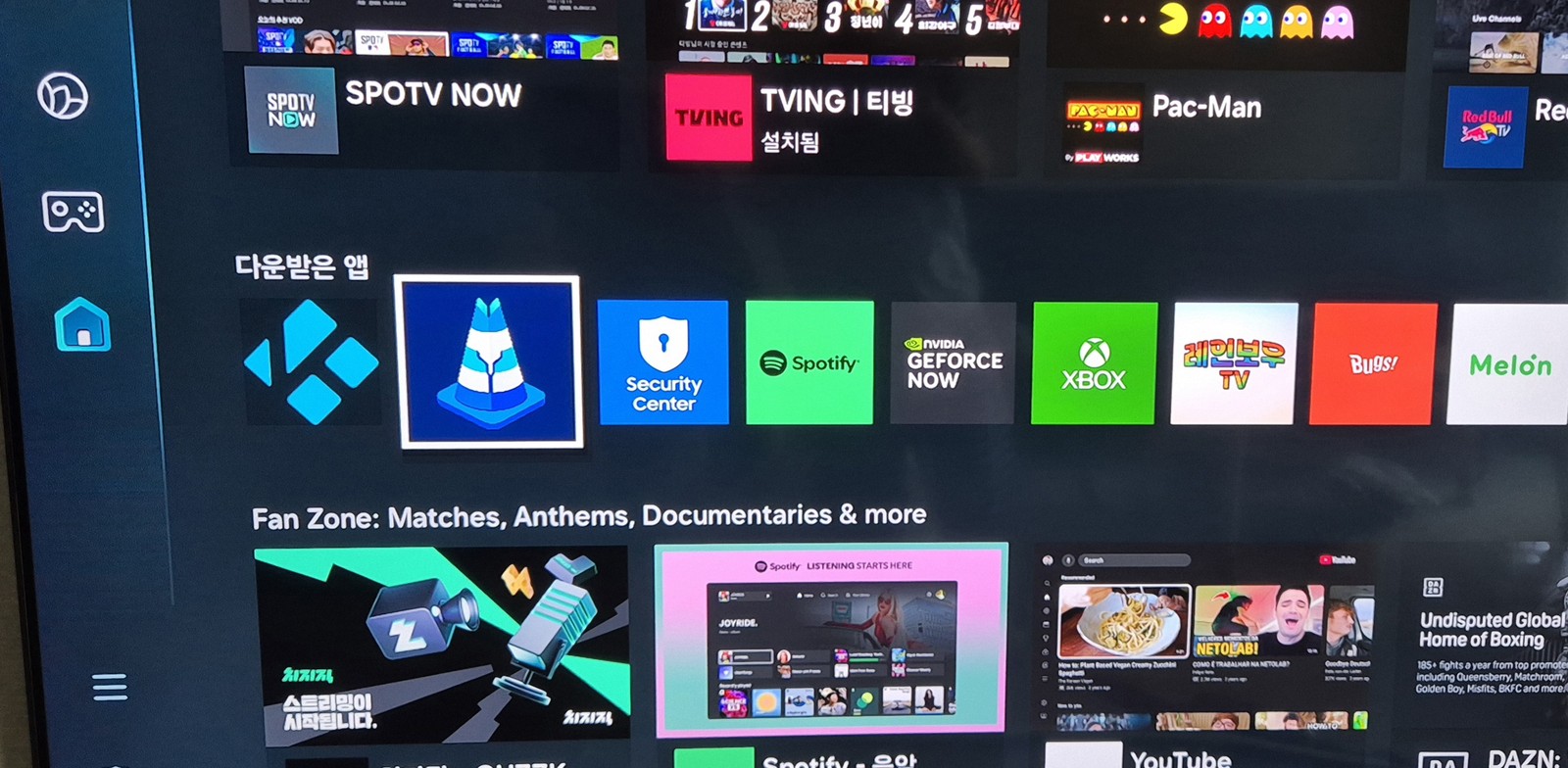
Samsung TV downloaded apps list showing community apps like VLC

▲ VLC (cone icon), Kodi, and other community apps sit right alongside the official apps under 'Downloaded apps'.

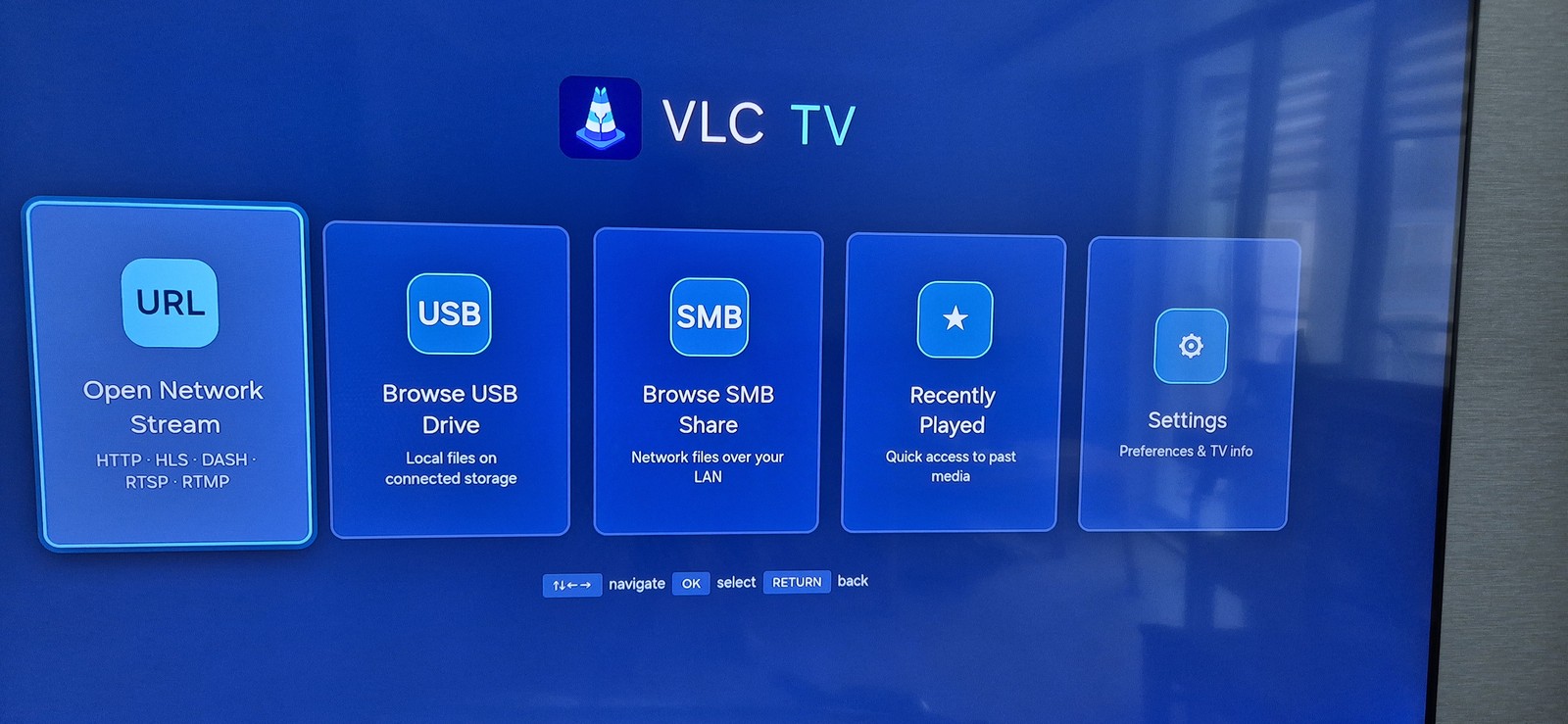
Give it a run to confirm it works. Here's VLC running on the TV:

VLC TV app main screen running on a Samsung TV

▲ VLC TV running on a Samsung TV. It supports Open Network Stream (URL), USB, SMB shares, and Recently Played.

Wrapping up — more community apps are coming

As you can see, it's easy to sideload custom wgt apps that Samsung's store doesn't offer. Just VLC's SMB/USB playback alone dramatically boosts what a Samsung TV can do.

These days people build Tizen apps easily even through vibe coding, so I expect the community to keep releasing more free apps. For example, the vlc-tizen-tv repo was clearly vibe-coded with Claude.

Handy apps keep landing in tizen-community-packages, so take a look if you're interested.

※ Developer Mode is an official Samsung feature, and Apps2Samsung and the apps shown are open source. That said, community apps installed via Developer Mode are not covered by official Samsung support, and installation/use is at your own risk. Only use copyrighted content through legitimate channels.

Stream Your PC Games to a Samsung TV — Sunshine + Moonlight Setup Guide (Free GeForce Now Alternative)

Stream Your PC Games to a Samsung TV — Sunshine + Moonlight Cloud gaming like GeForce Now costs a monthly subscription. But what if you u...