On x86, Volumio normally boots and runs from a USB device. VMware doesn't boot from USB sticks by default, so this guide shows how to get a Volumio USB to boot inside VMware using the PLoP Boot Manager, and then install it onto the VMware virtual disk.
What you need: a USB stick of 8 GB or larger.
1. Create the Volumio USB boot disk
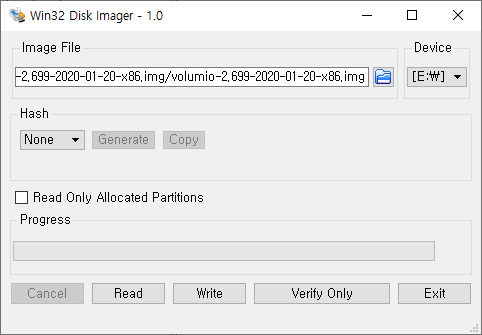
Download the PC (x86/x64) image from the Volumio website (https://volumio.org/) and write it to the USB stick with Win32 Disk Imager to make it bootable.
2. Two ways to boot the USB in VMware
- Attach the USB stick to VMware as a raw hard disk and boot from it.
- Use the PLoP Boot Manager ISO CD image to boot from the USB stick. Since VMware doesn't support USB-stick booting by default, this method makes it possible.
This guide uses the PLoP Boot Manager method. You can download it from plop.at; after downloading, extract the archive and place the plpbt.iso CD image in a convenient location. (In this example it's extracted to the D: drive.)
3. Configure the VMware guest
The VMware guest settings are as follows. Volumio is based on 32-bit Debian Linux, so set the guest OS to Debian. An IDE-type HDD of just 8 GB is plenty.
For the CD/DVD, I use an ISO image file and attach the plpbt.iso from the D: drive above.

| Guest OS | Debian (Volumio is 32-bit Debian-based) |
|---|---|
| Hard disk | IDE type, 8 GB is enough |
| CD/DVD | ISO image file → plpbt.iso (PLoP Boot Manager) |
| USB | Insert the Volumio USB stick and connect it to the guest |
4. Boot the USB via PLoP Boot Manager
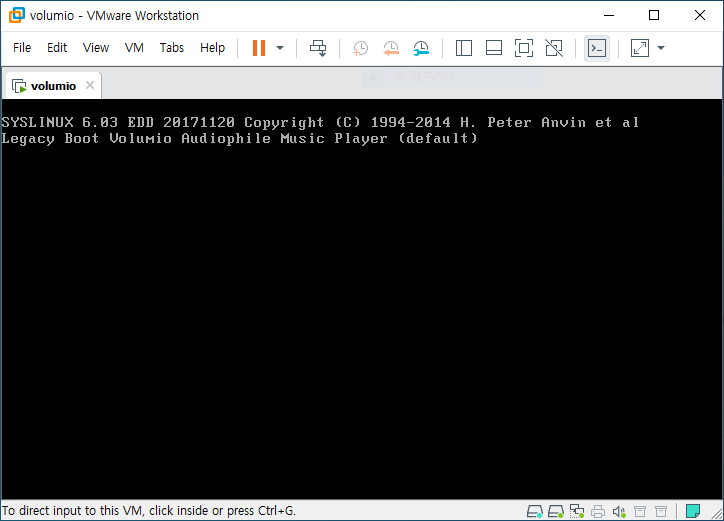
Insert the USB disk and connect it to the guest OS. Boot the CD/DVD first, and the plpbt.iso boot image lets you choose to boot from the USB stick.

Once you choose to boot from USB, Volumio boots up as shown below.
5. Install Volumio to the VMware disk
Do the basic configuration first.

In the settings you'll see an Install To Disk (VMware) menu; clicking it installs Volumio onto the VMware disk.




댓글 없음:
댓글 쓰기